Navigating Onshape
Navigating large models in Onshape is a skill that takes practice. Soon your robot model will be quite large, and a single viewing angle won't be enough. You'll need to move the model around, zoom into part connections, and zoom back out to the full view.
First, let's get familiar with the controls for moving models around in Onshape.
View Controls
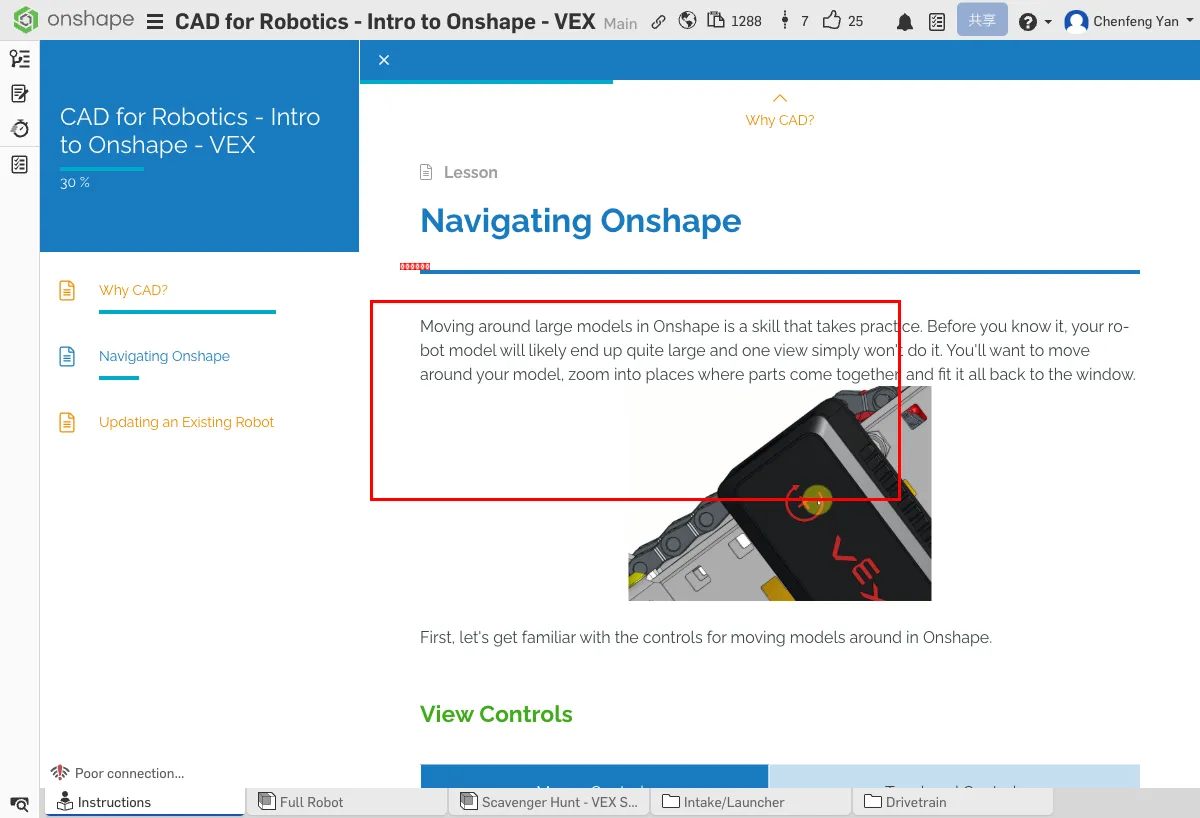
Mouse Controls
| Rotate | Pan | Zoom |
|---|---|---|
| Right-click + drag | Middle-click or Right-click + Ctrl + drag | Scroll wheel |
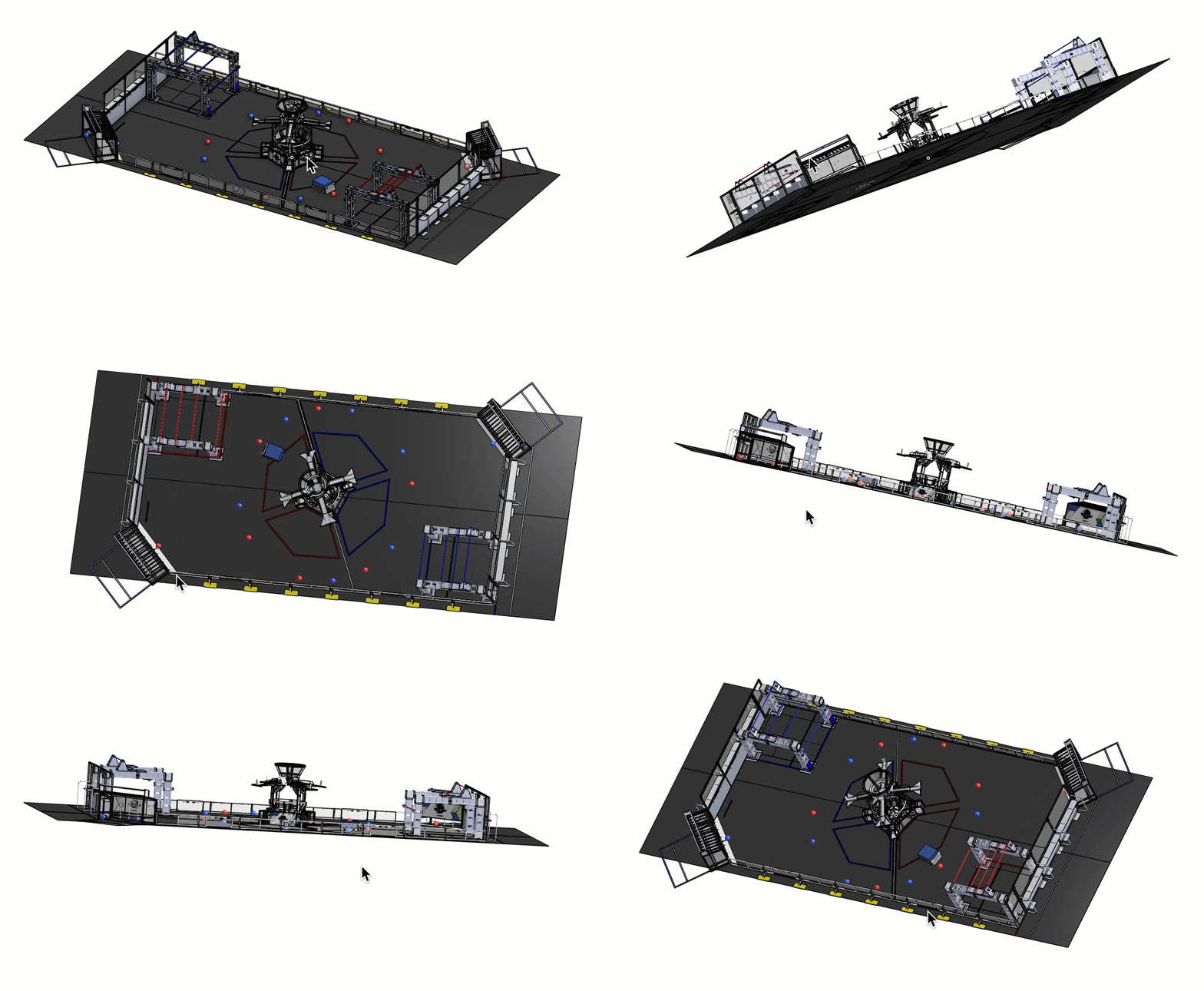
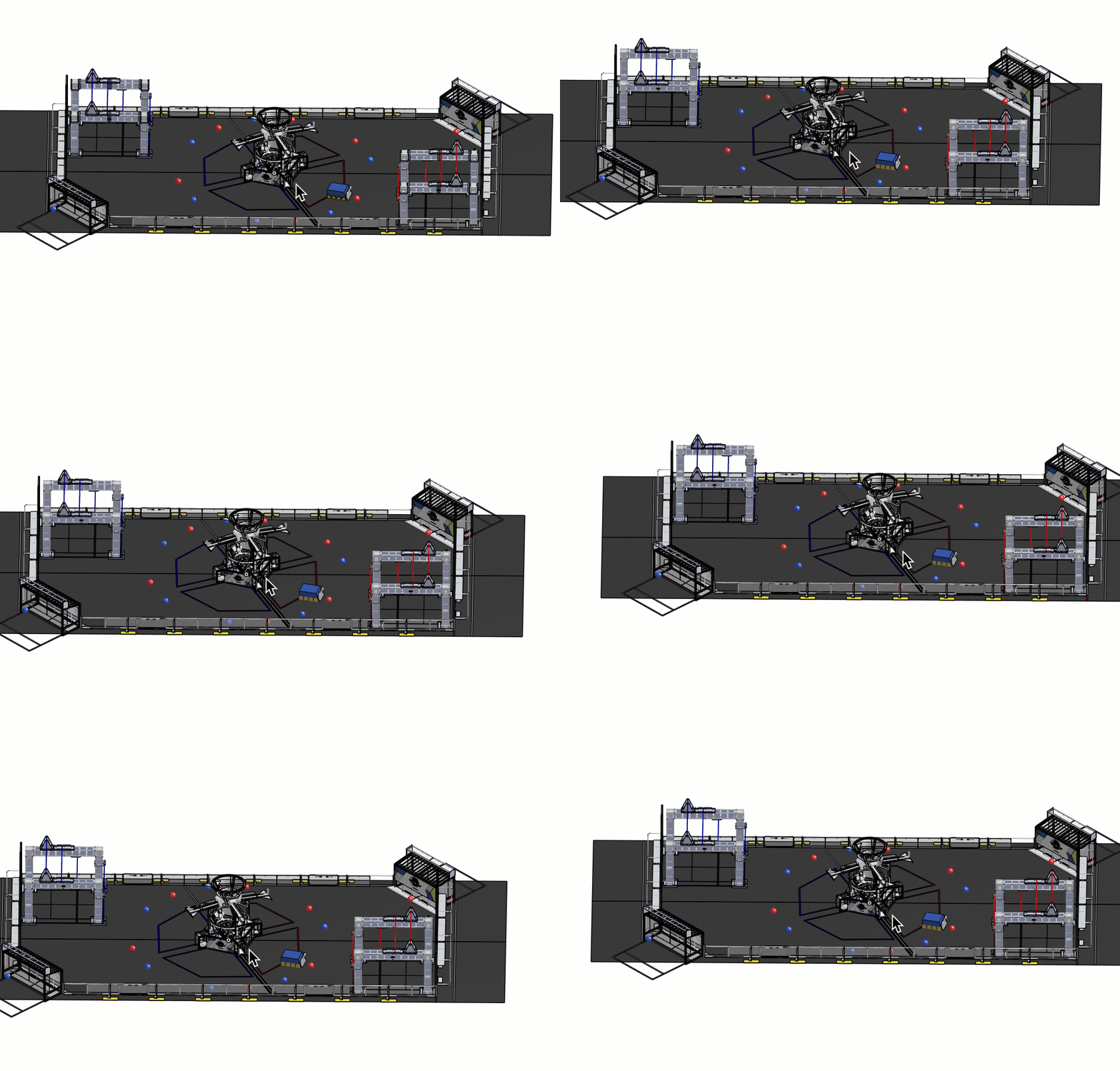
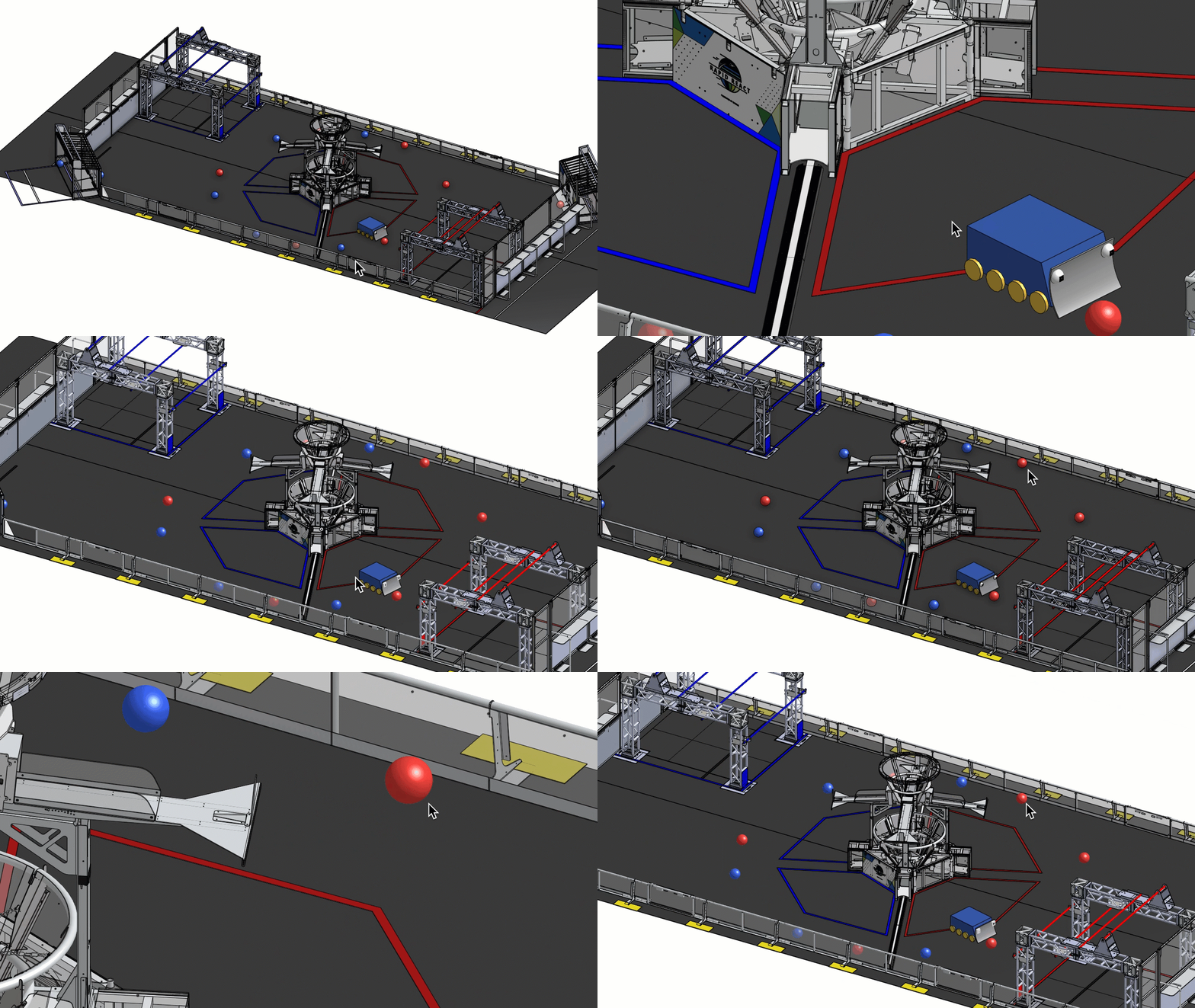
Trackpad Controls
| Rotate | Pan | Zoom |
|---|---|---|
| Two-finger drag | Shift + two-finger drag | Pinch |
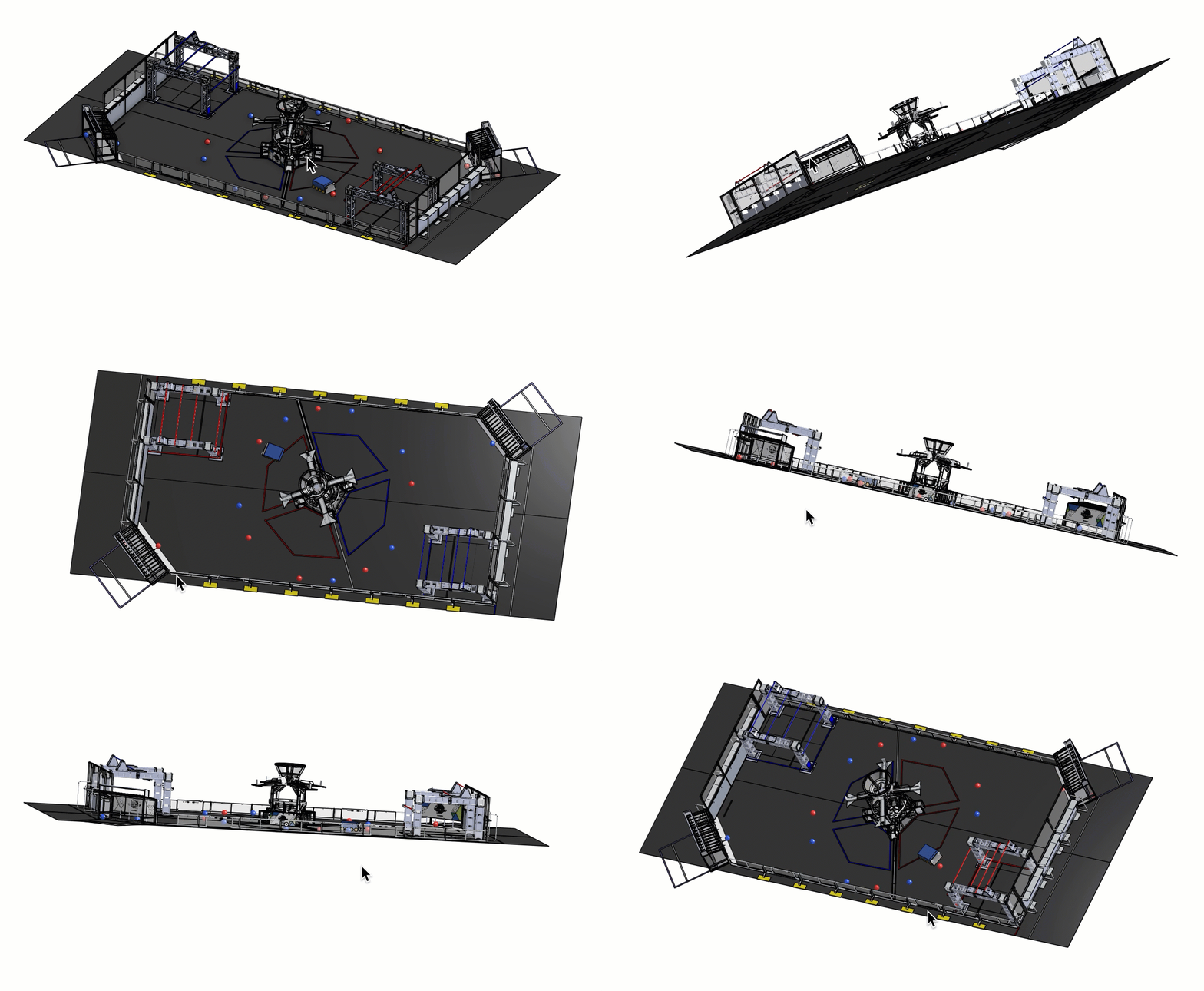
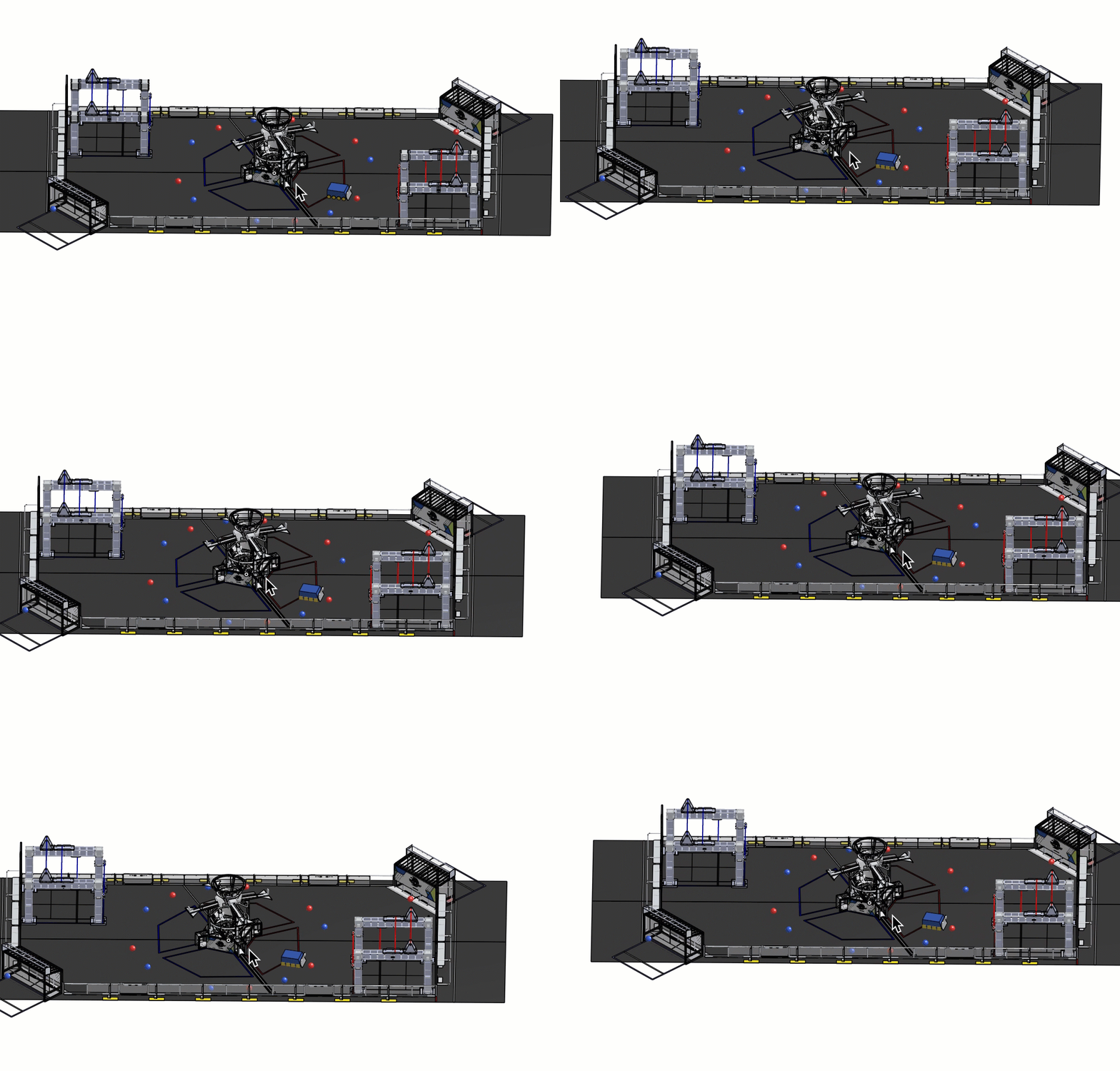
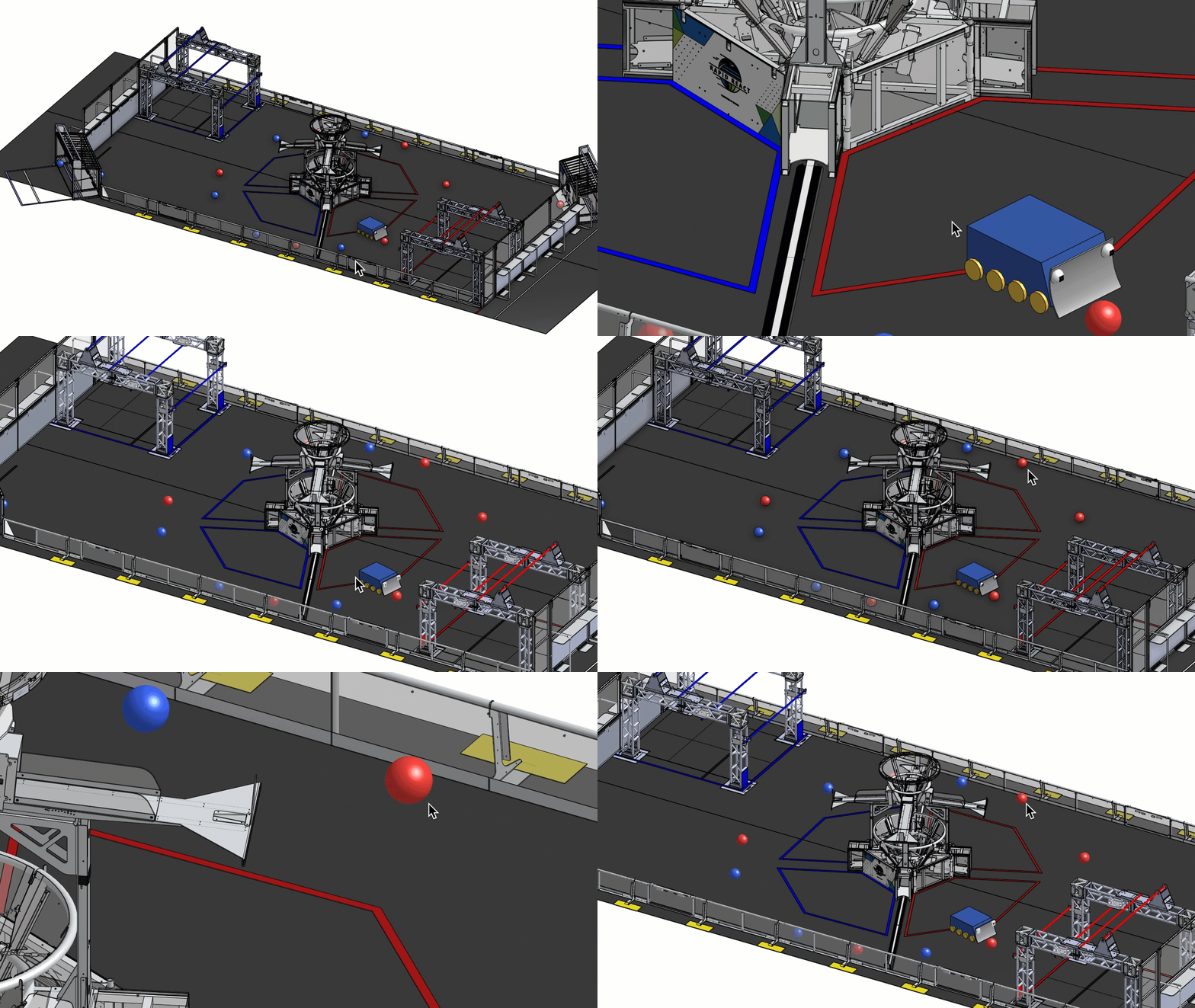
Click the Full Robot tab, try right-click dragging to rotate and scrolling to zoom
Try right-click dragging to rotate the robot, scroll to zoom into a gear detail, then press F to return to the full view
Hands-On Practice
Now that you've mastered Onshape navigation, let's practice. We've hidden 10 items in the VEX game field model to challenge your navigation skills.
Using Multiple Browser Tabs
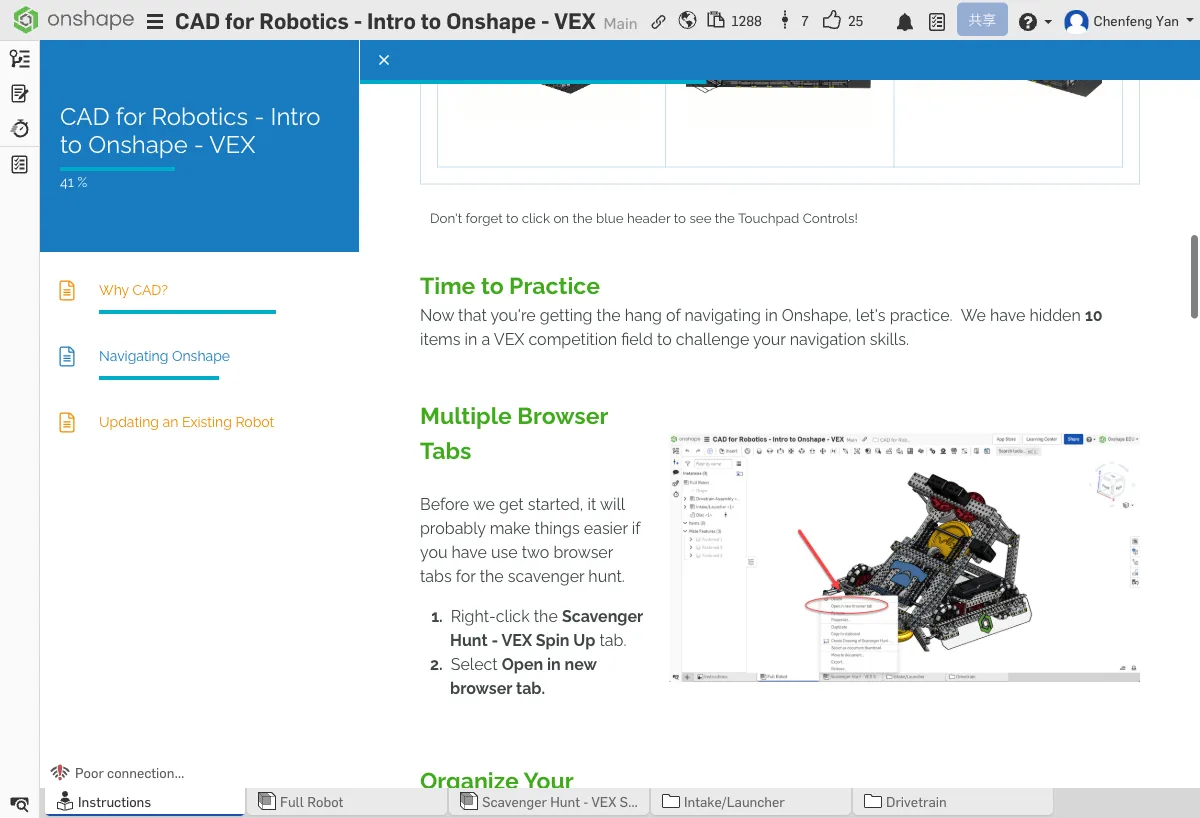
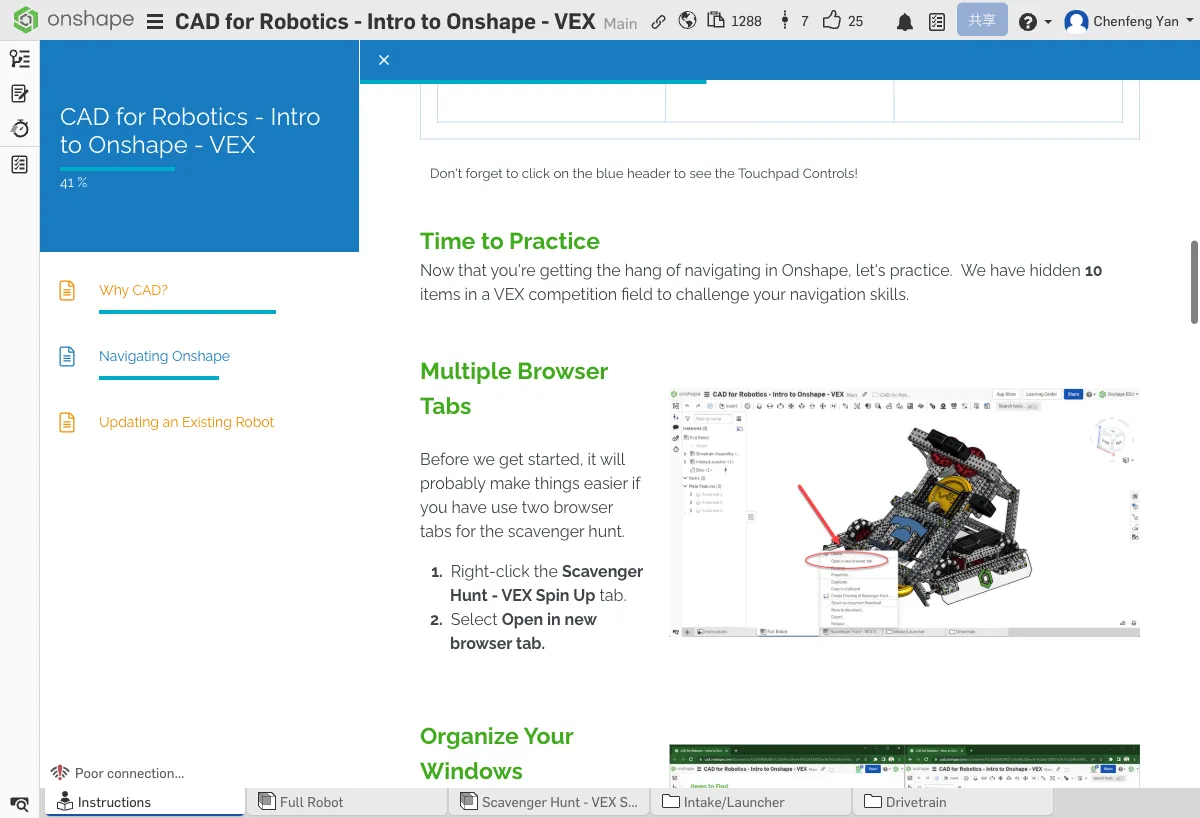
Before starting, we recommend opening two browser tabs to work side by side:
- Right-click the Scavenger Hunt - VEX Spin Up tab at the bottom
- Select Open in new browser tab
Items to Find
In the VEX field assembly, practice zooming, rotating, and panning to find the following items:
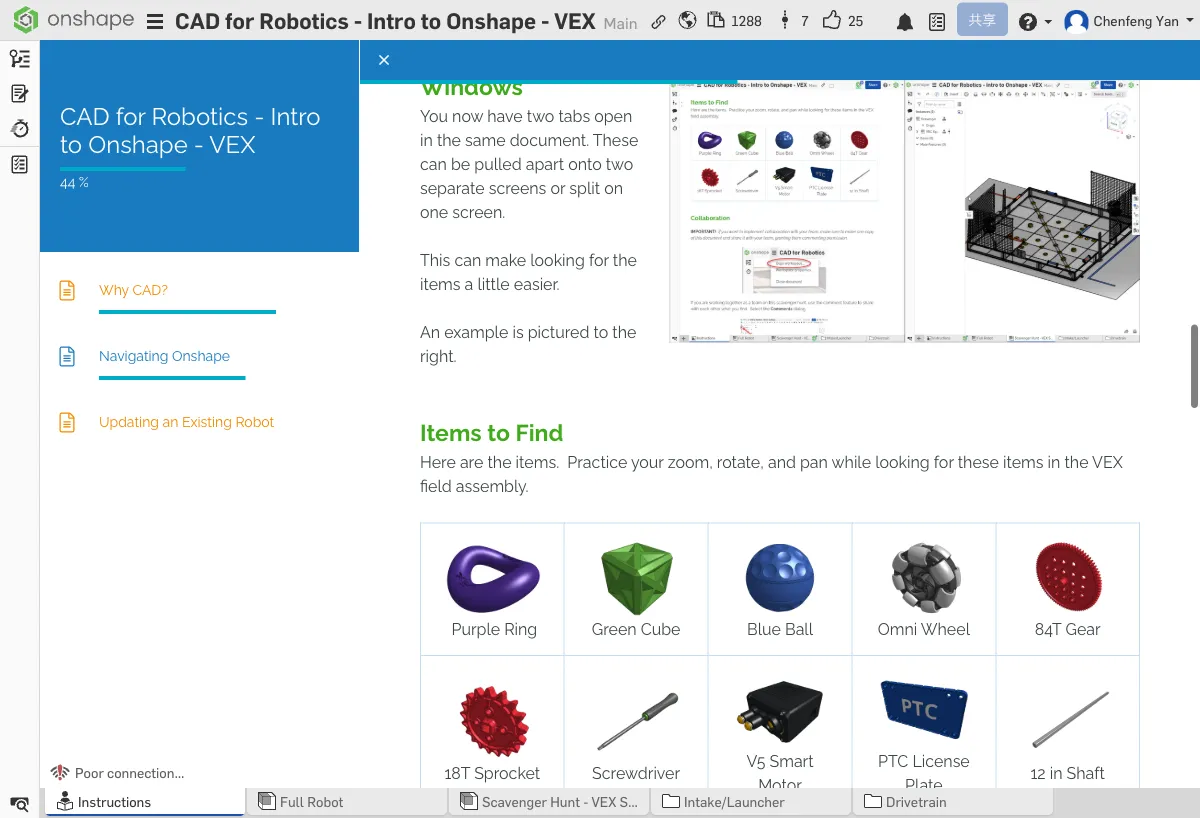
| 10 Hidden Items | ||||
|---|---|---|---|---|
| Purple Ring | Green Cube | Blue Ball | Omni Wheel | 84T Gear |
| 18T Sprocket | Screwdriver | V5 Smart Motor | PTC Nameplate | 12" Shaft |
.png)
.png)
.png)
Collaboration Features
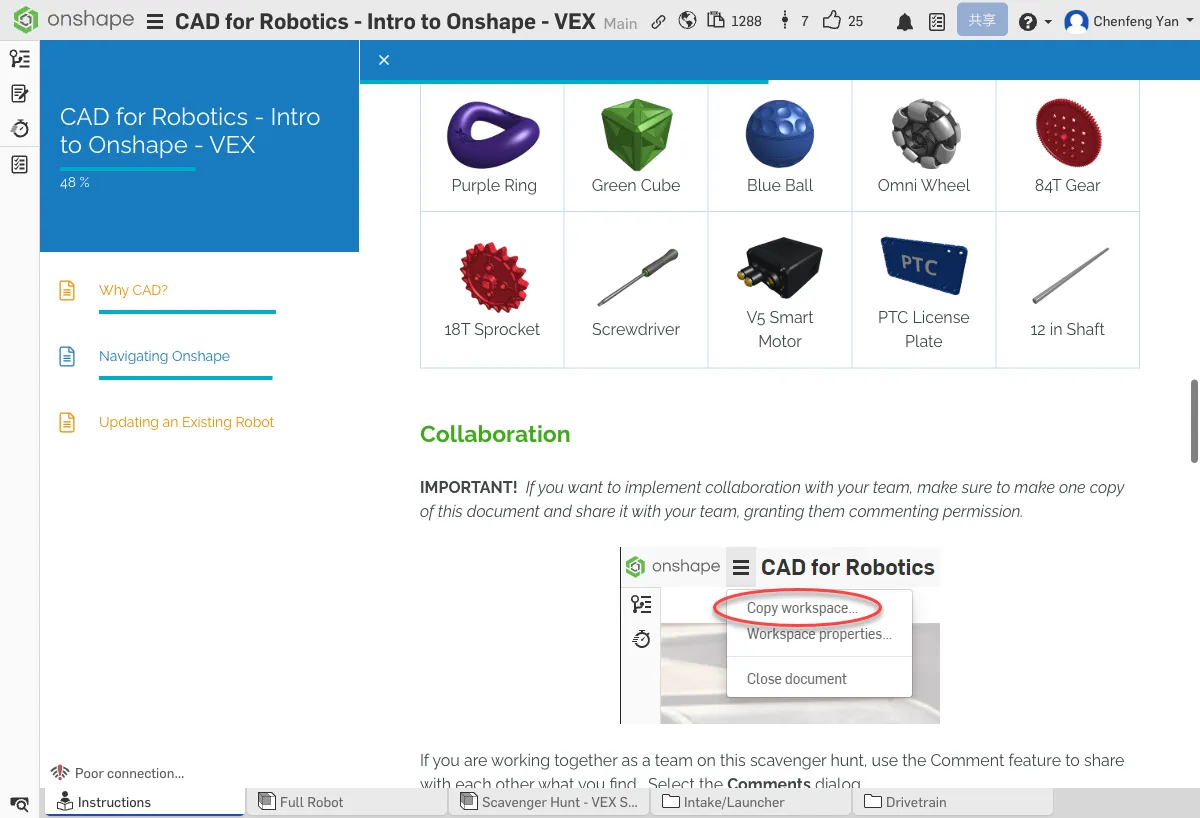
If you're doing the scavenger hunt with teammates, you can use the comment feature to share your findings:
- After finding an item, leave a comment in the comment area
- Try the Mark entity button and the Annotation button
- Use the @ symbol to mention teammates
Think about it: How could you use this feature during the robotics season?
Finding at least 5 means you're already comfortable navigating Onshape!
Teams and Designers Using Onshape
You should remember the robots mentioned in the previous chapter. Now that you're familiar with the Onshape interface, take some time to explore these real Onshape documents. Open them to see how models are assembled and how teams organize their designs.
61391Z & 37212A - Seaweed Scoop
- Move the scoop arm up and down to see how it goes from ground to vertical without interfering with the robot
- Open different tabs at the bottom to see how they modeled each subsystem
- Check the CAD Robot Overview tab — the team embedded a PDF in the document to explain their design
More Practice
If you want more practice navigating large models in Onshape, check these out:
Onshape Learning Center
Good engineers know how to use their resources. The Onshape Learning Center is one of your most valuable resources, with plenty of self-paced courses to explore.
Recommended: Navigating Onshape self-paced course — helps new users master the Onshape interface and document pages.
What You Learned in This Chapter
- Right-click to rotate, middle-click to pan, scroll to zoom
- Press F to return to the full view
- Use multiple tabs and comments to collaborate
Quick Quiz
In Onshape, what does holding and dragging the middle mouse button do?