Large Assemblies
A. Large Assembly Optimization
As your robot model grows more complex, the part count can reach hundreds or even thousands. At that point, Onshape's rendering and computation performance may slow down. Here are some practical optimization tips.
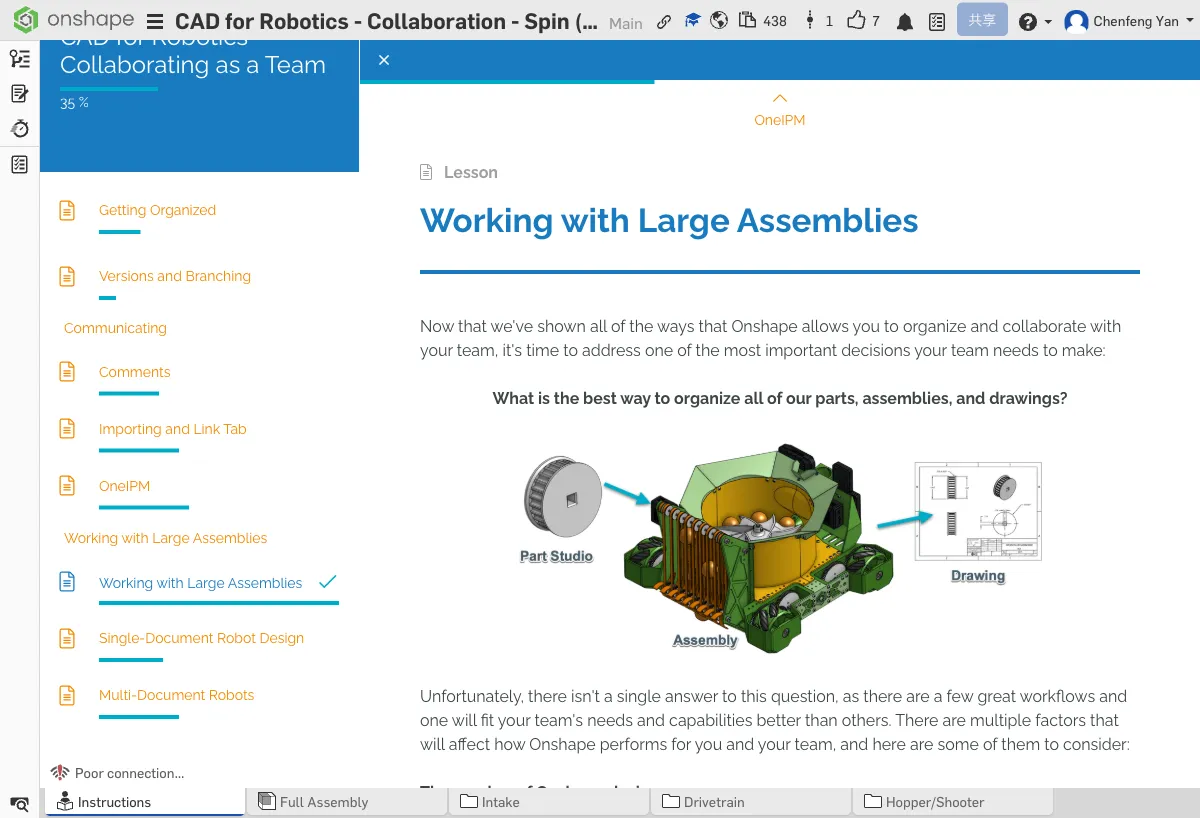
Show/Hide Parts
In an assembly, hiding parts you don't currently need to view can significantly speed up rendering. In the feature tree on the left, click the eye icon next to a part to toggle its visibility.
Simplified Display Mode
Simplified display only shows the outer shell of each part, omitting internal details. This is ideal during the overall layout stage.
Sub-Assembly Architecture
Properly splitting sub-assemblies is key to managing complex models. We recommend splitting by functional module:
- Drivetrain — wheels, motors, transmission
- Intake — intake mechanism
- Shooter — launching mechanism
- Lift — lifting mechanism (if applicable)
Each sub-assembly is managed independently, then combined in the top-level assembly.
Lightweight Mode
Onshape's lightweight mode loads only the minimum data needed for rendering, dramatically improving load times. Use it when opening large documents.
In your previous assembly, try hiding some parts, then switch to Simplified display mode and notice the performance difference.
B. OneIPM (Real-Time Collaboration)
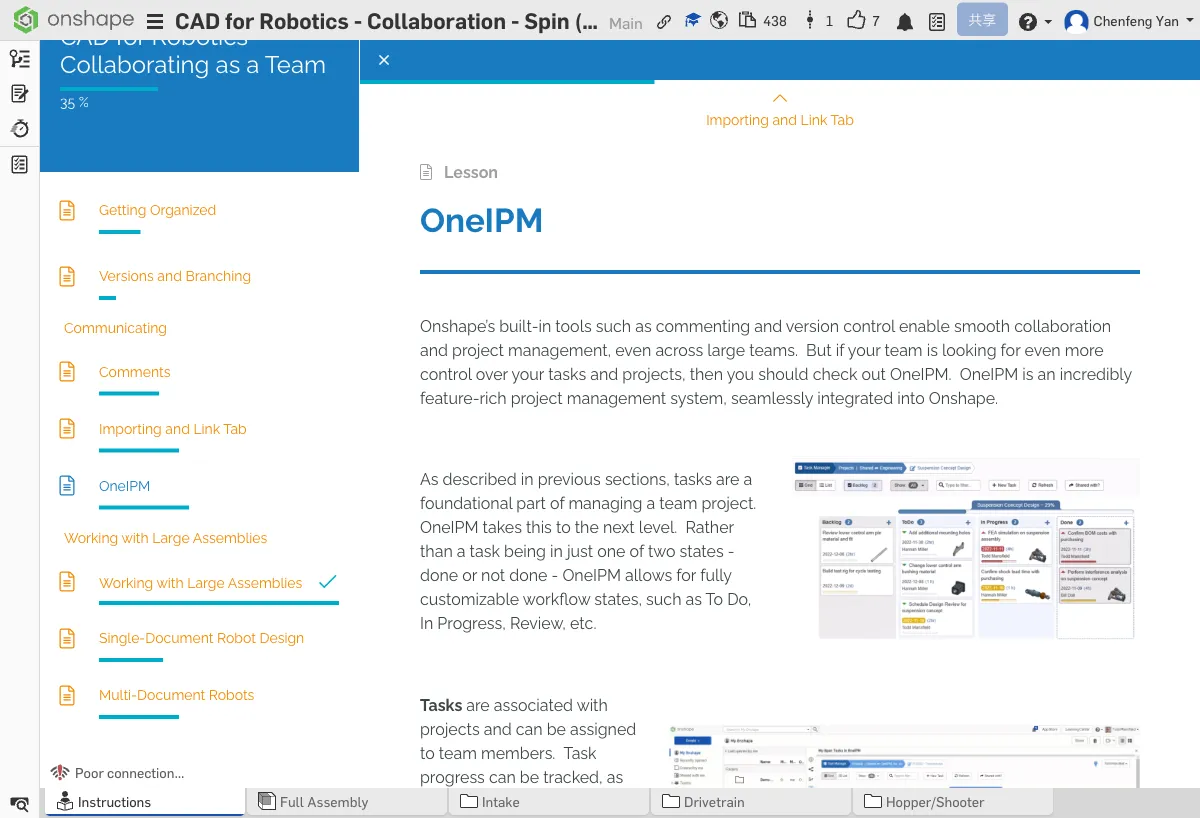
OneIPM is one of Onshape's most powerful collaboration features — multiple people can edit the same document simultaneously, seeing each teammate's cursor position and changes in real time.
Key Features
- Real-time sync — All changes are automatically saved and synced; no manual "save" needed
- Visible collaboration — You can see where your teammates are currently editing
- No conflicts — Onshape automatically handles concurrent edits
OneIPM Task Management
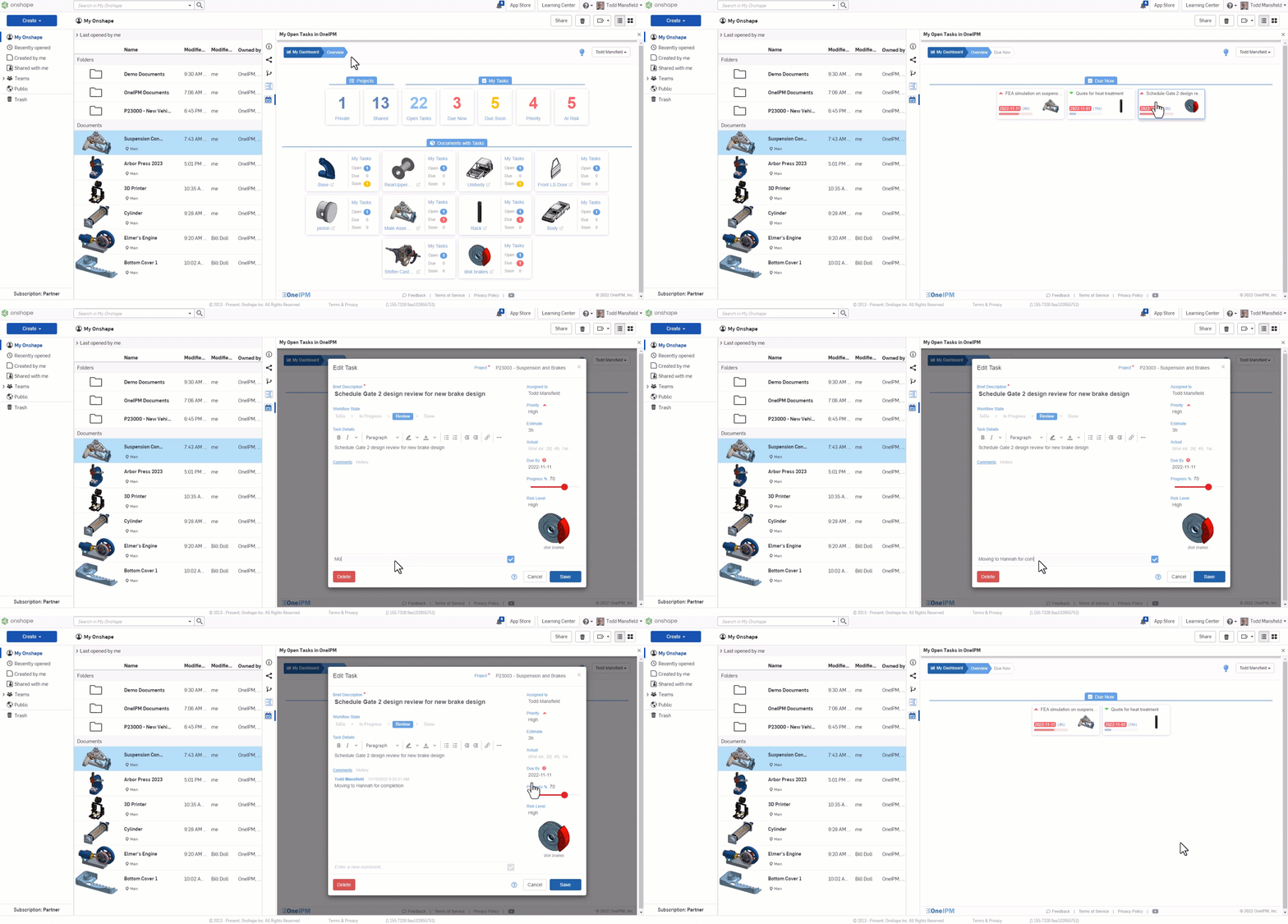
OneIPM integrates task management directly into Onshape. You can create tasks, assign them to teammates, and track progress — all within the CAD environment.
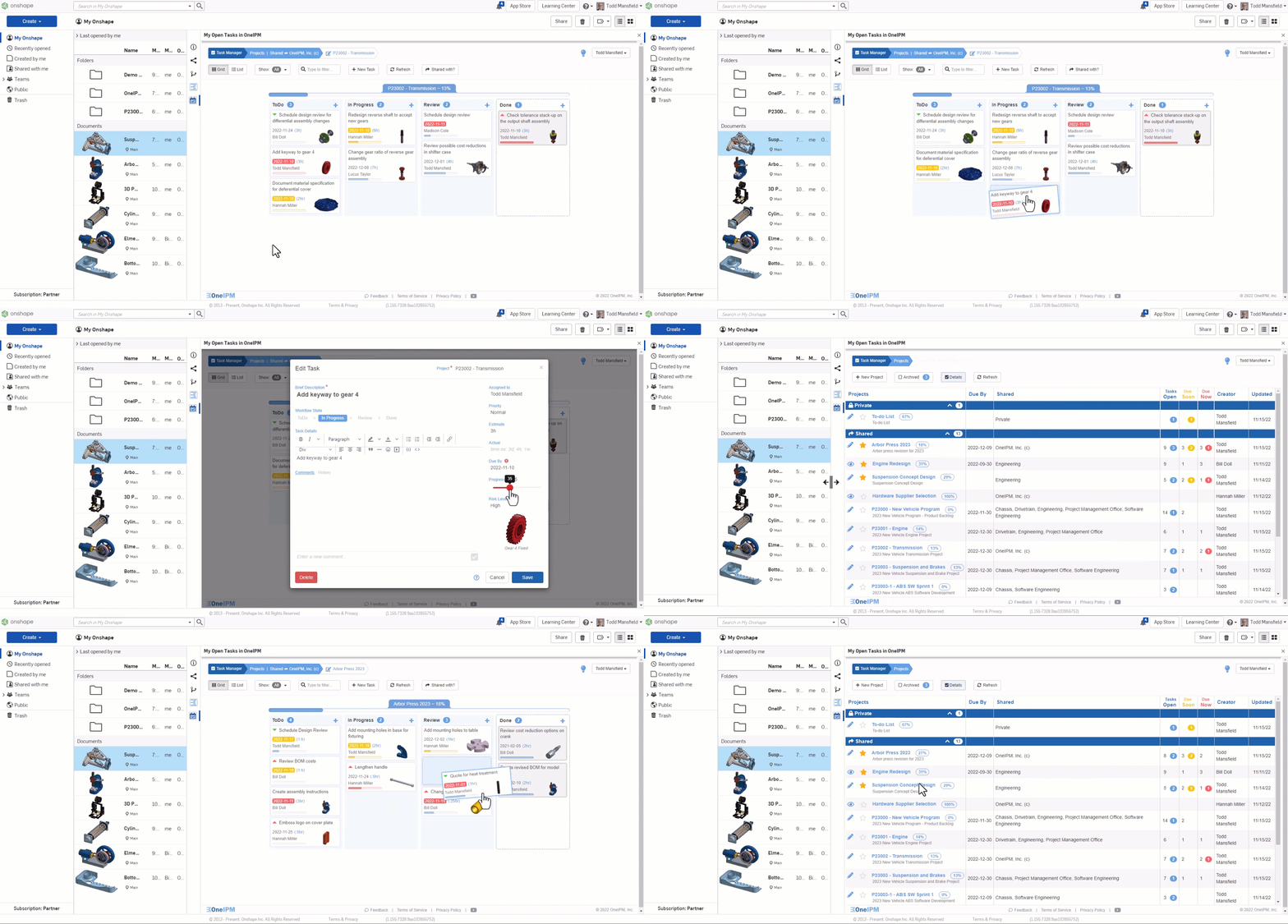
Want to know what to work on today? Open the OneIPM panel and check the task list under My Tasks > "Due Now".
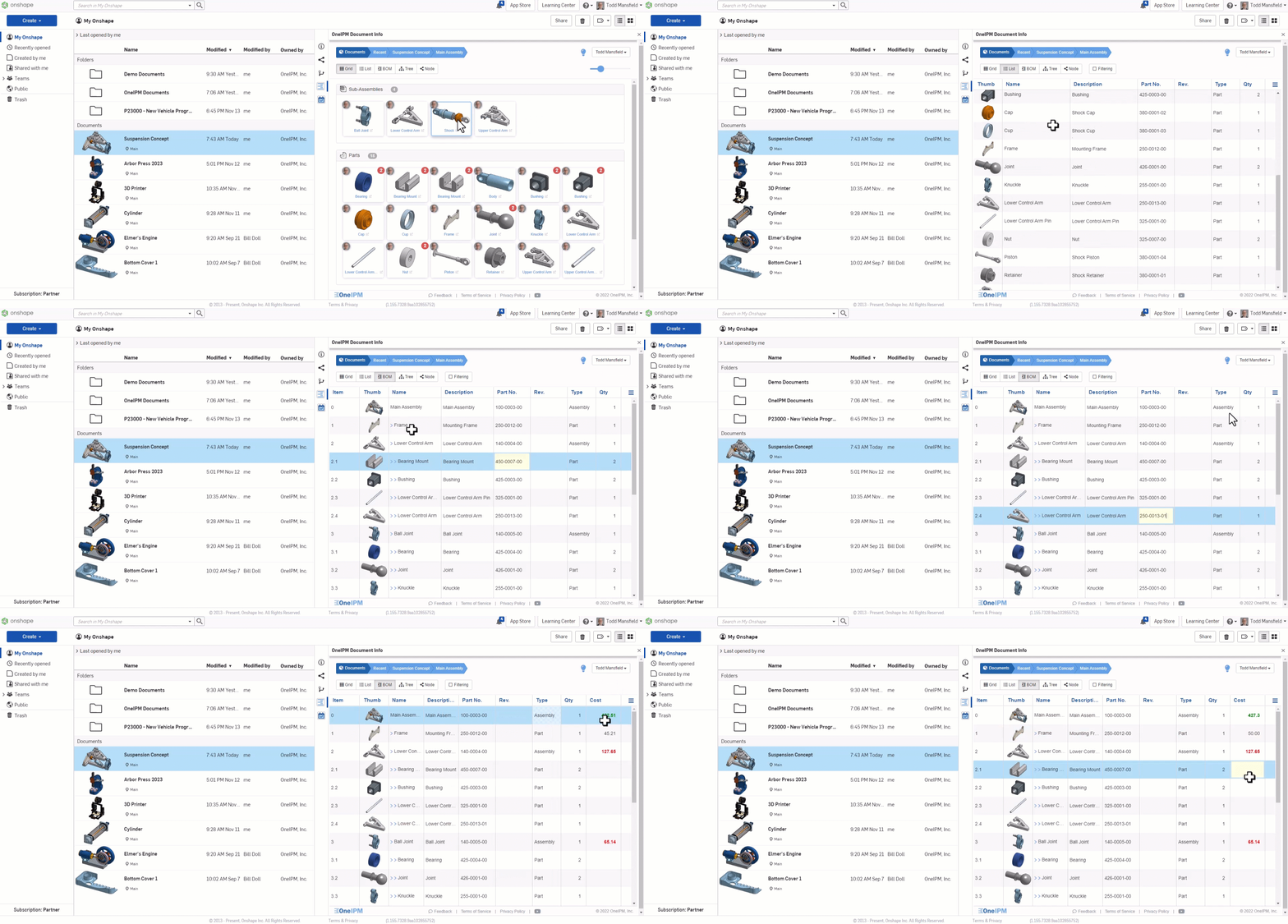
BOM and Assembly View
OneIPM's document viewer provides an intuitive view of large assemblies and supports creating interactive BOMs (Bills of Materials) to organize, sort, and filter parts.
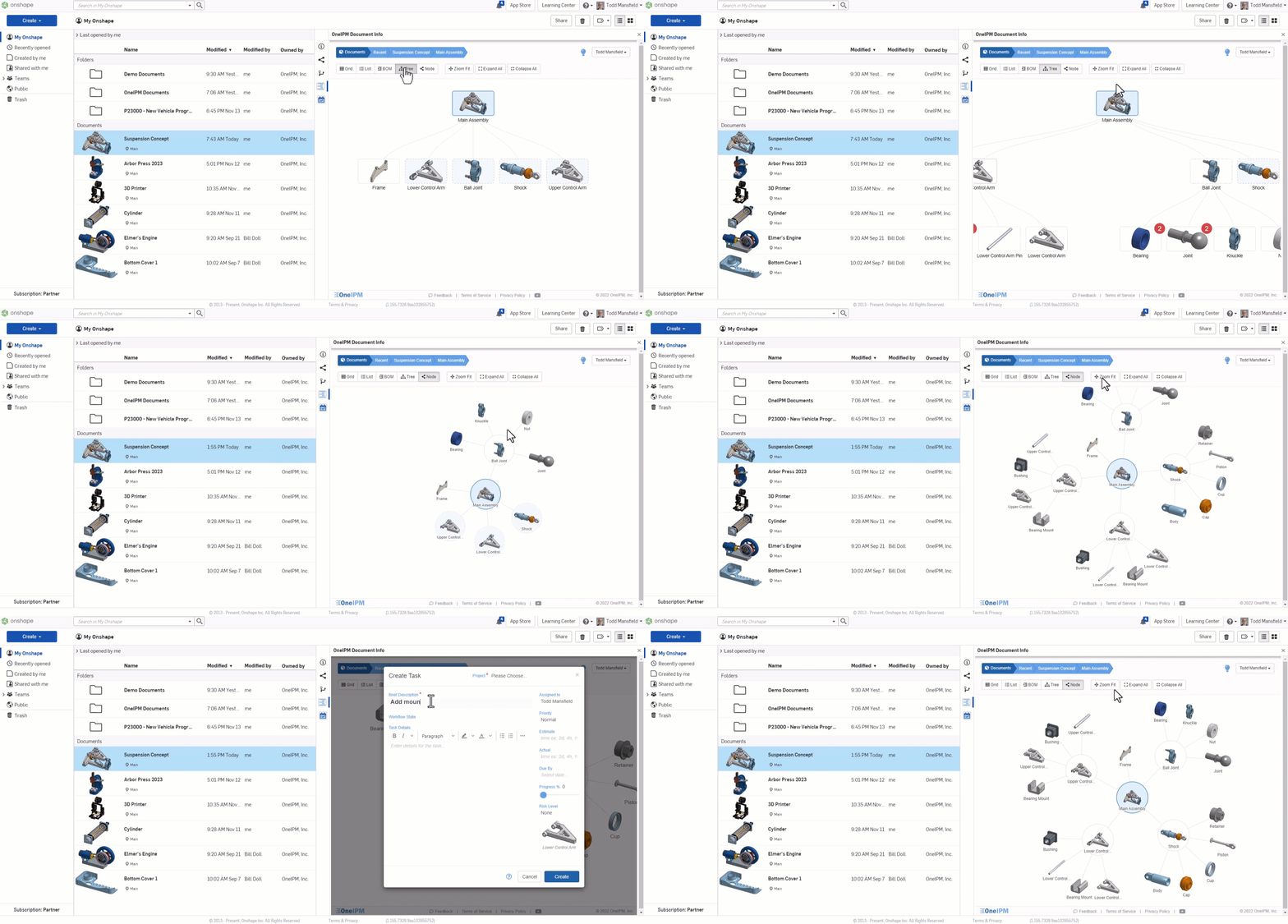
Tree and node views let you intuitively understand the assembly structure and how parts connect. You can also create tasks directly from these views.
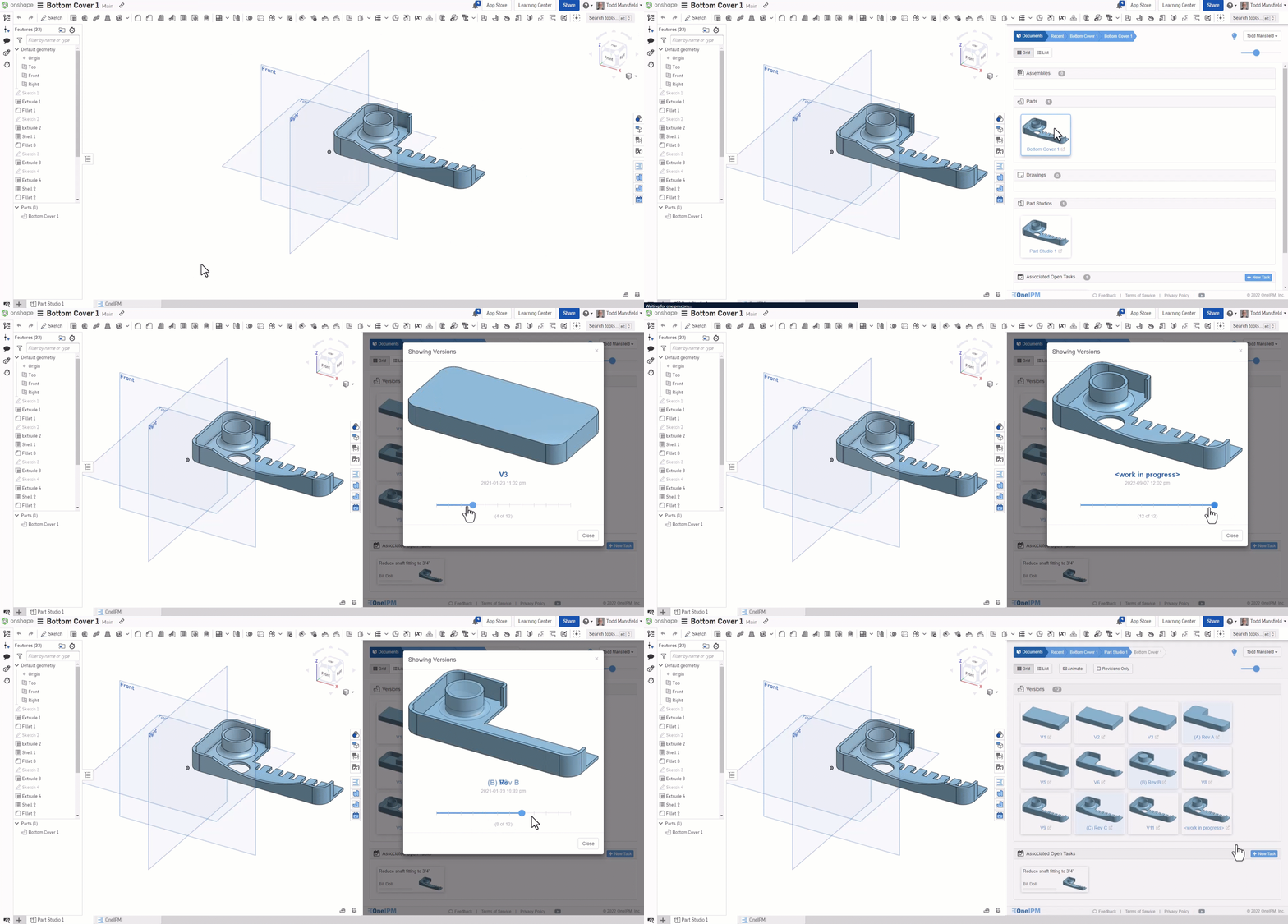
Documenting Design Iterations
During the robot design process, it's important to document each iteration and modification. OneIPM helps you track design history and showcase your team's work.
Multi-User Collaboration Best Practices
When multiple people are editing an assembly at the same time, we recommend:
- Divide work by sub-assembly — One person handles the drivetrain, another handles the intake system
- Avoid editing the same part simultaneously — Onshape can handle it, but it adds merge complexity
- Use comments to communicate — When design decisions need discussion, leave comments directly on the model
Comments Feature
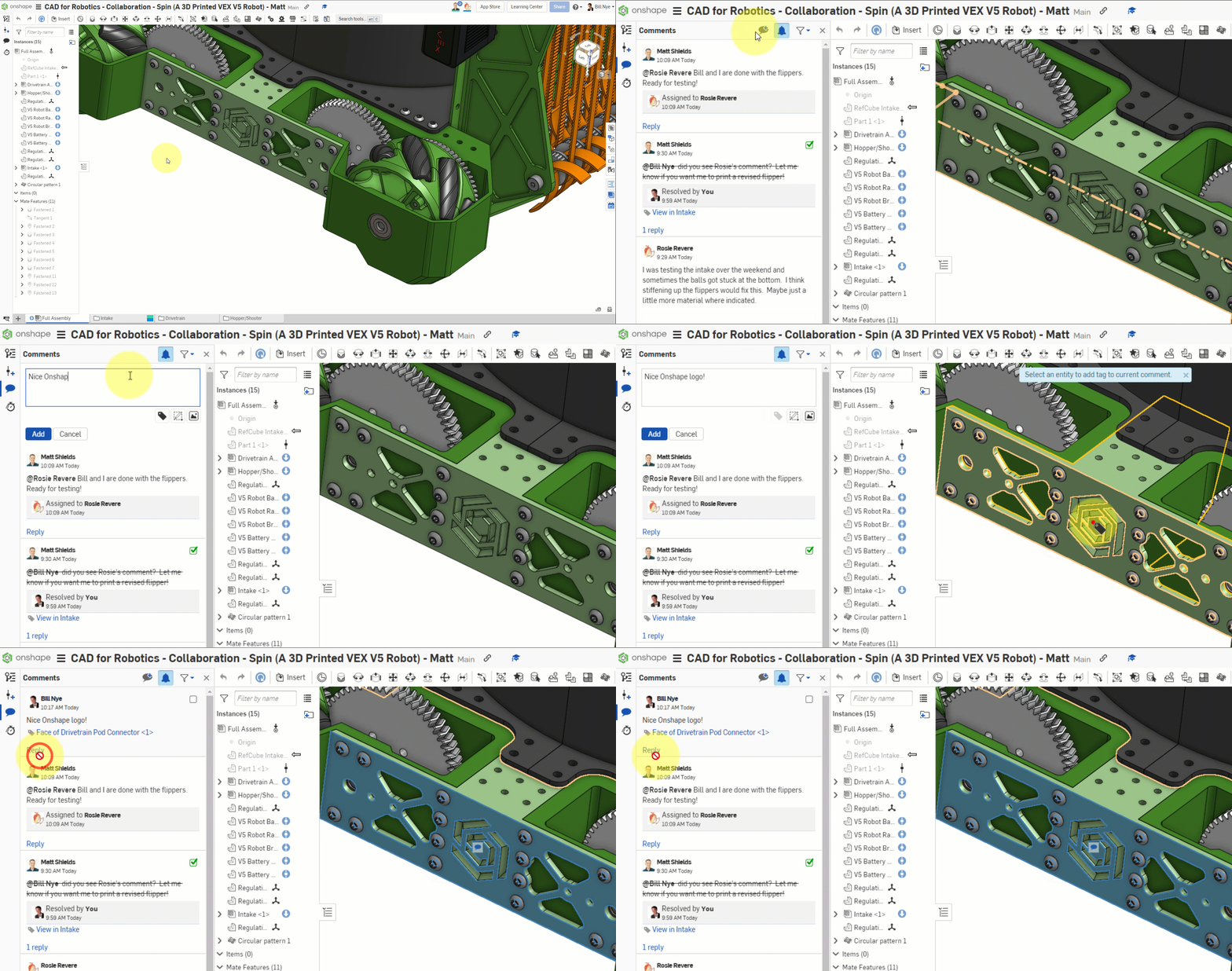
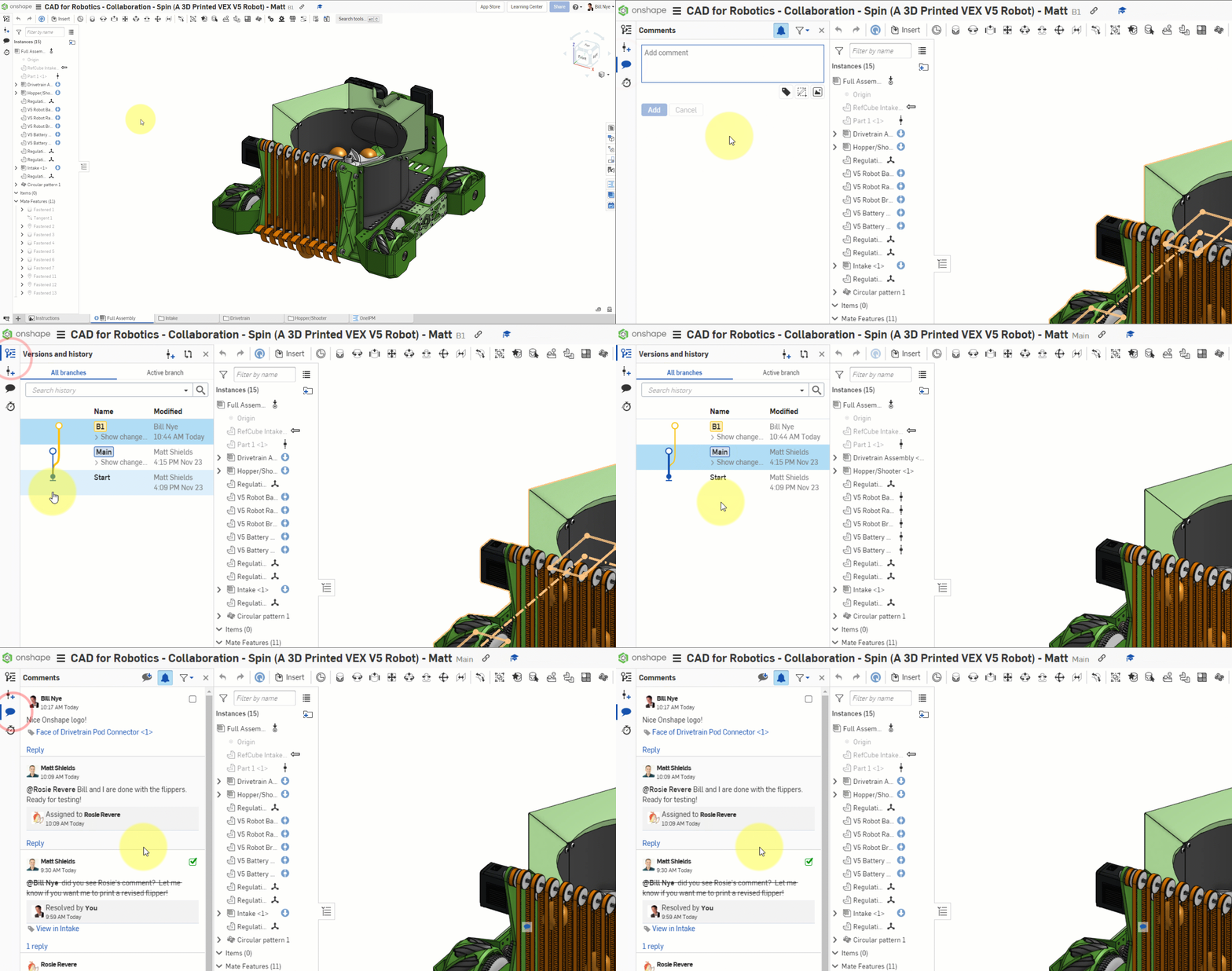
Onshape's built-in comment feature makes team communication more efficient. Click the comment icon on the left to open the comment panel and annotate directly on the model.
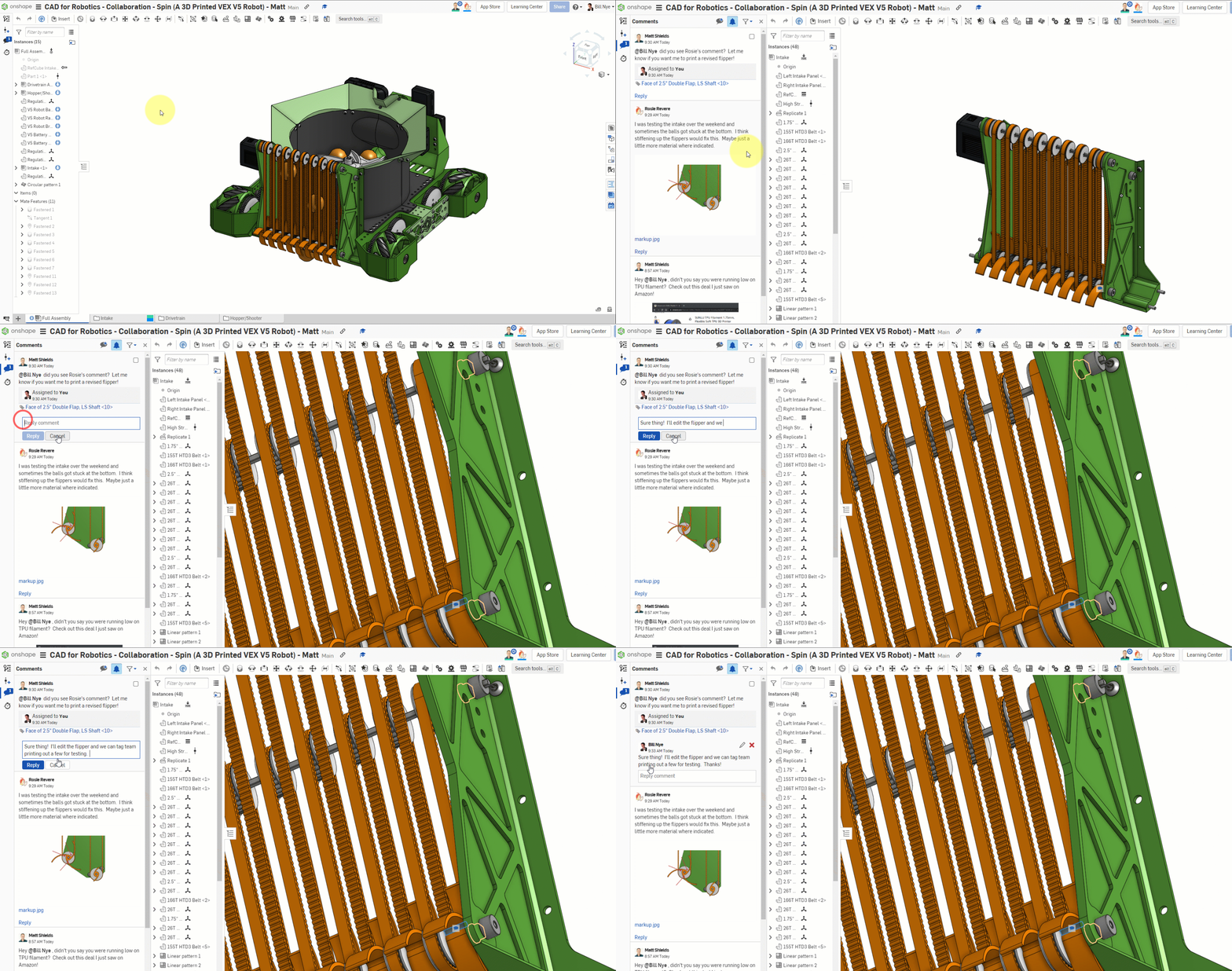
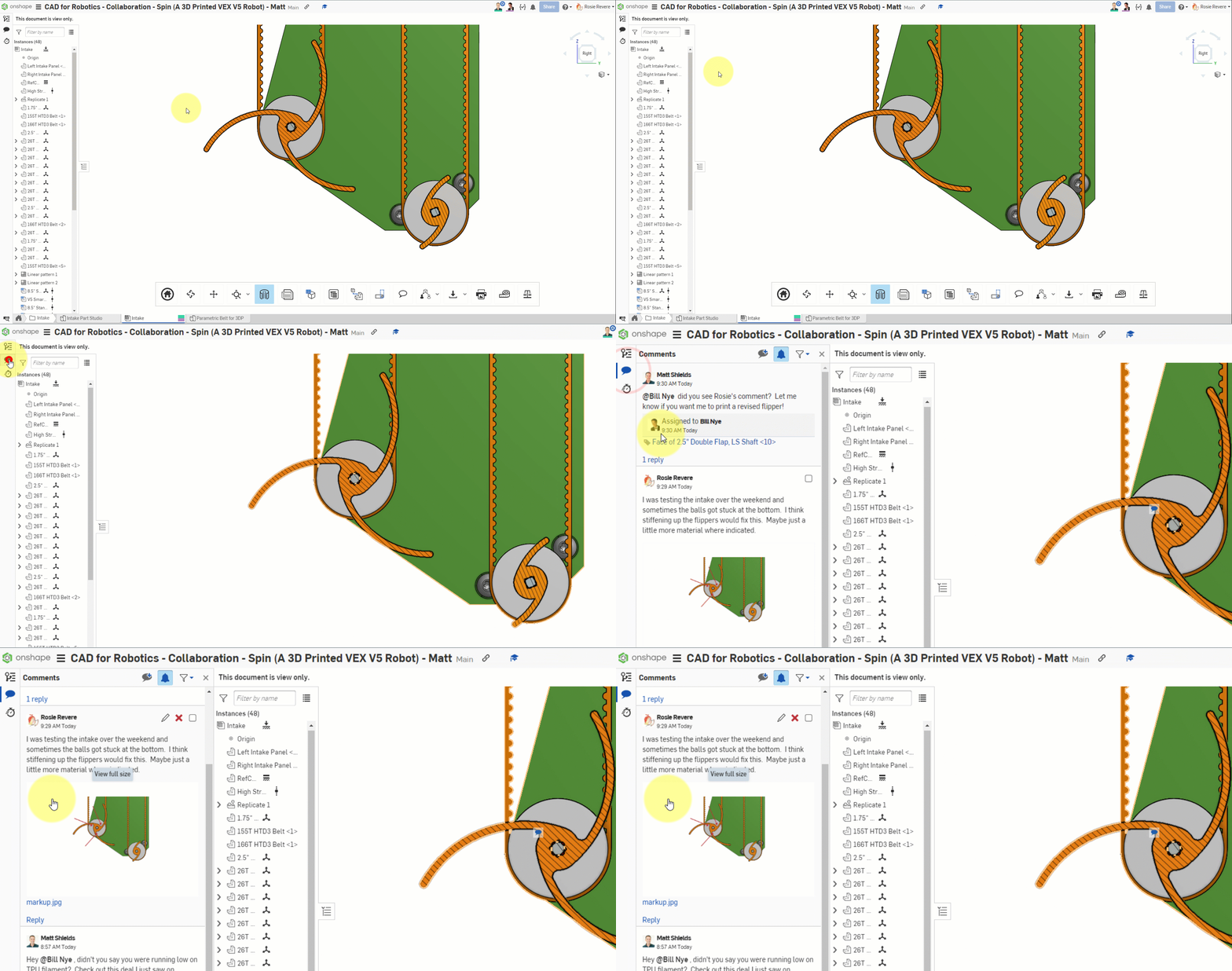
Use the @ symbol to mention teammates in comments and assign tasks. Mentioned users will receive notifications.
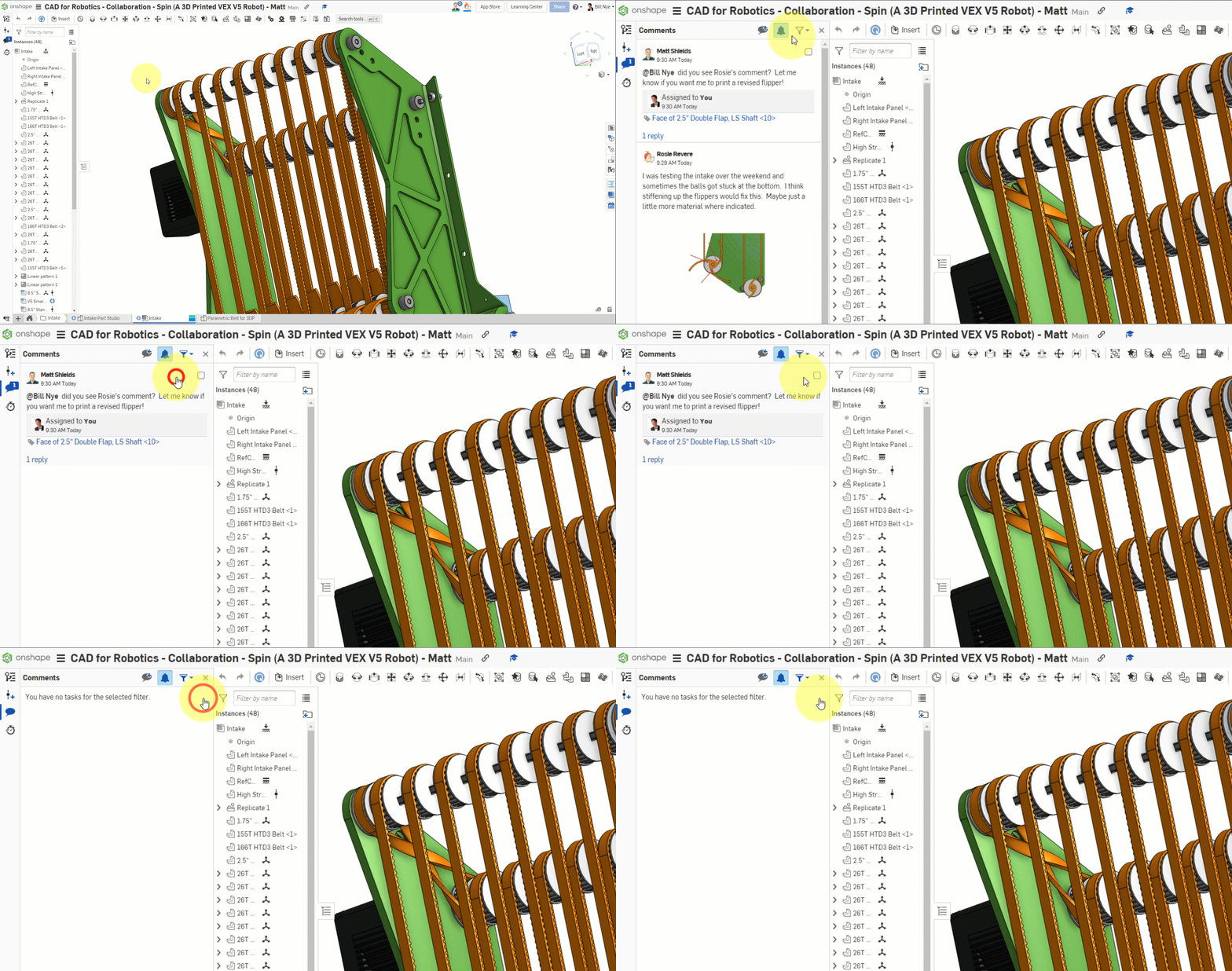
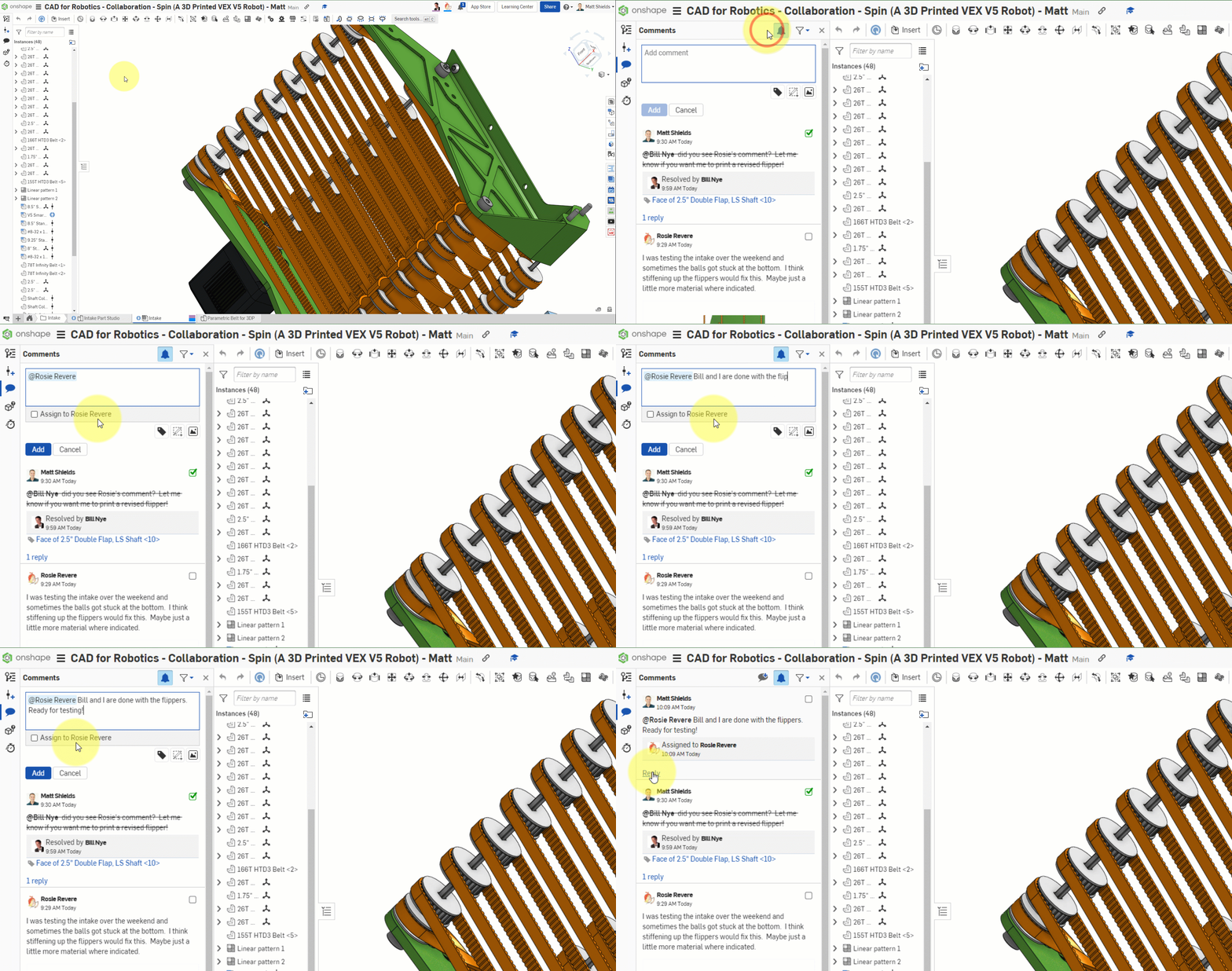
When comments pile up, use the filter feature to quickly find what you need. You can also reply to comments and mark tasks as complete.
Traditional CAD software (SolidWorks, Fusion 360) requires you to manually save, export files, and send them to teammates. Onshape is cloud-native — just open a browser and start collaborating, no file transfers needed.
If a teammate is also learning this tutorial, try opening the same document at the same time and experience OneIPM's real-time sync.
Quick Quiz
What Onshape mode reduces part detail to improve performance in large assemblies?
What You Learned in This Chapter
- Hide unnecessary parts to speed up rendering
- Split sub-assemblies properly to manage complexity
- OneIPM supports real-time multi-user editing