Presenting & Sharing
Copy the Document
As before, start by copying the tutorial document to your own Onshape account.
This will open the Onshape tutorial document in a new tab. Then copy it to your own account.
A. Presenting Your Robot
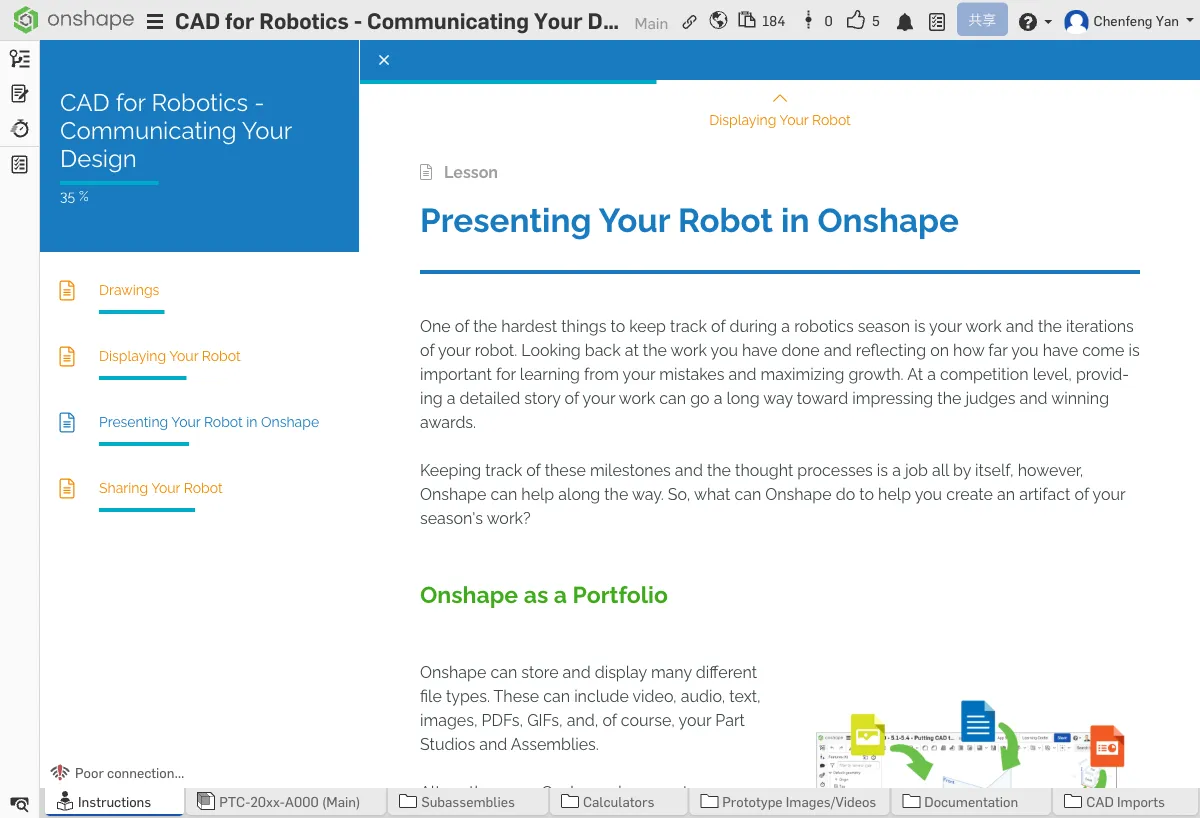
Your Document Is Your Portfolio
Your Onshape document isn't just a design tool -- it's the best portfolio for showcasing your team's work. A well-organized Onshape document lets judges and sponsors instantly see your design capabilities.
Embedding PDFs
You can create PDF tabs in your Onshape document to include design documents right inside:
- Design specifications
- Calculation and analysis reports
- Test records
Embedding Other Files
In addition to PDFs, you can add images, video screenshots, and other files to your Onshape document, keeping all resources in one place.
Link Tab
Use Link Tab to add external links, turning your document into an information hub:
- Competition rulebook link
- Team website
- Robot performance video links
- Related reference materials
Documents You Should Collect
A complete CAD portfolio should include:
- Design iteration history -- Changes across different versions, showing how your design evolved
- Robot photos and videos -- Comparisons between CAD model and physical robot
- Test data and improvement records -- Issues found during testing and corresponding design changes
- Competition GIFs -- Highlight moments of your robot in action during matches
Onshape View Features
Onshape provides several view tools to help you showcase your robot design from different angles:


Composition and Lighting
There are some tricks to getting great model screenshots:
- Angle selection -- An isometric view (45-degree angle) best showcases overall design
- Background -- White or light gray backgrounds look most professional
- Color coordination -- Use different colors for different subsystems to make them easy to distinguish
- Hide unnecessary parts -- Focus on showcasing key mechanisms
Try adding a Link Tab to your document, linking to your team website or competition rules page.
B. Sharing Your Robot
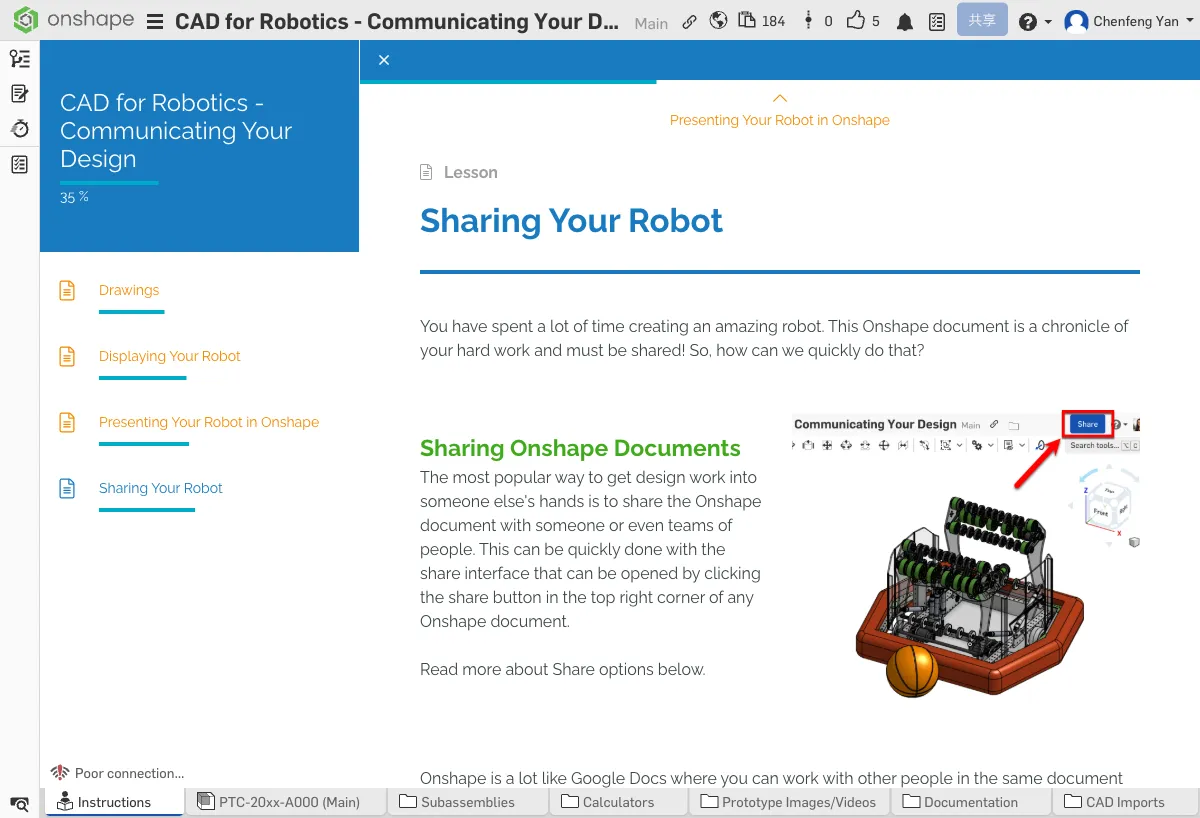
Sharing Onshape Documents
Onshape offers flexible sharing options -- you can share directly with individuals or teams:
- Edit permission -- The recipient can modify your design (use with caution)
- View permission -- The recipient can only view, not edit
- Comment permission -- The recipient can view and leave comments
Link Sharing
In addition to sharing with specific users, you can also generate a public view link:
- Anyone with the link can view your model
- Perfect for including in your engineering notebook
- You can generate a QR code so judges can scan and view your robot design in 3D
Benefits of Sharing
Why spend time on sharing? Because the benefits are significant:
- Judge experience -- Judges don't need to look at paper; they can directly explore in 3D, making a much stronger impression
- Showcase CAD skills -- A well-organized Onshape document is itself proof of your team's capabilities
- Sponsor impression -- Sponsors can see your team's professionalism and dedication
- Team collaboration -- Makes it easy for team members to share designs and collaborate remotely
Open your Onshape document, find the sharing settings, and try generating a public view link. Think about where you would put this link.
Quick Quiz
What tab in Onshape lets you embed PDFs and external files?
What You Learned in This Chapter
- Your Onshape document is itself a portfolio
- You can embed PDFs, videos, and external links
- Link sharing lets judges view your robot directly in 3D