Organization & Collaboration
Copy the Document
As before, start by copying the tutorial document to your own Onshape account.
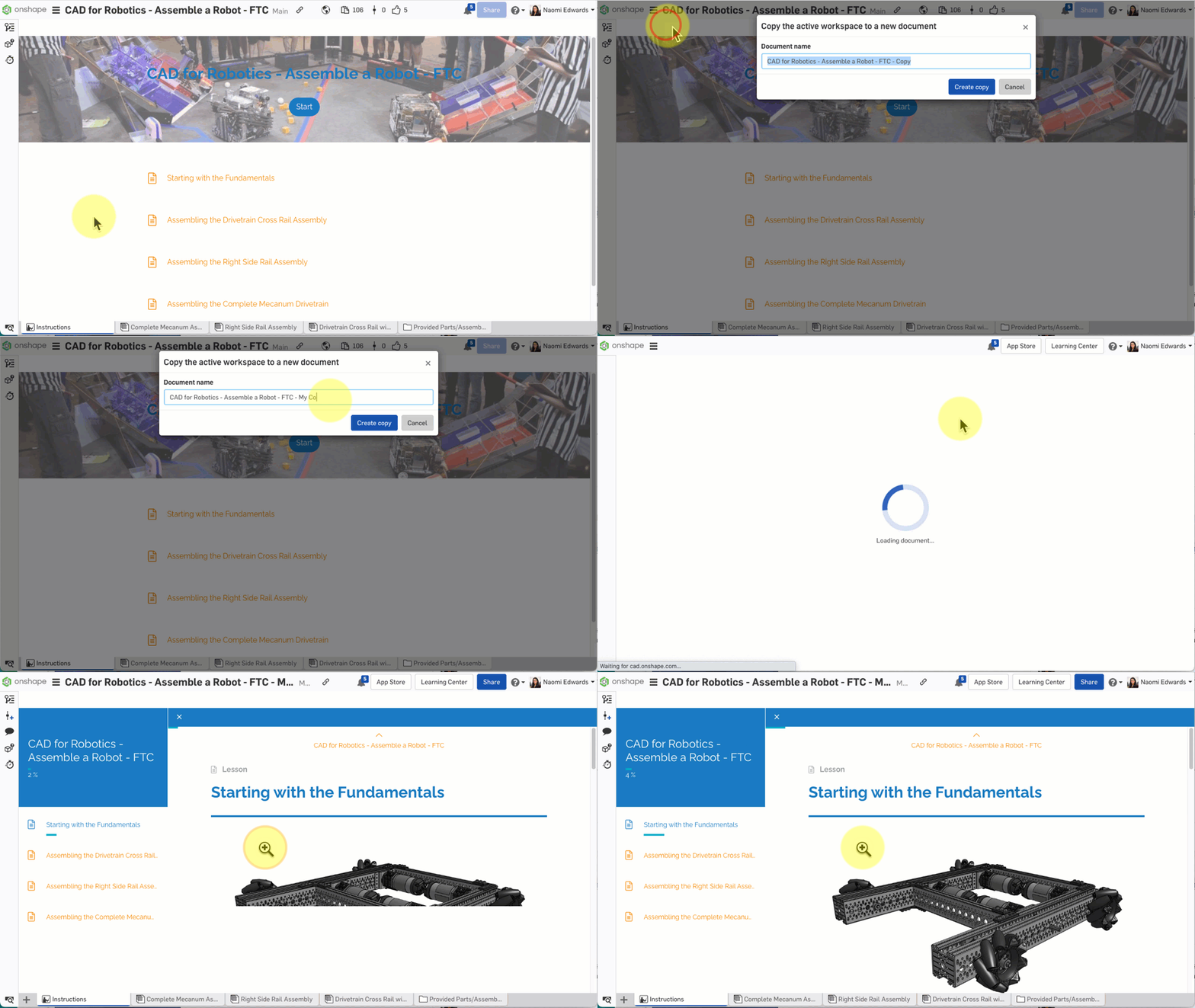
Click to open the Onshape tutorial document in a new tab, then copy it to your account
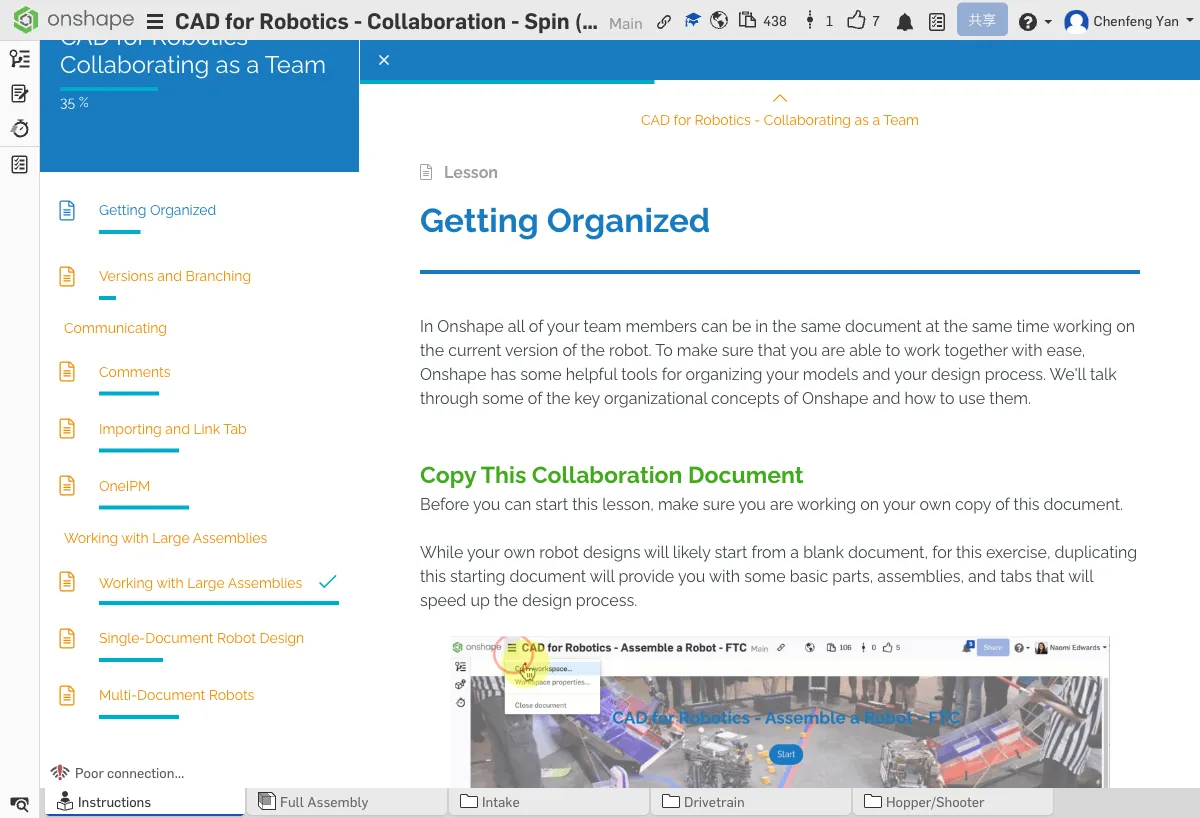
A. Getting Organized
Create a Team
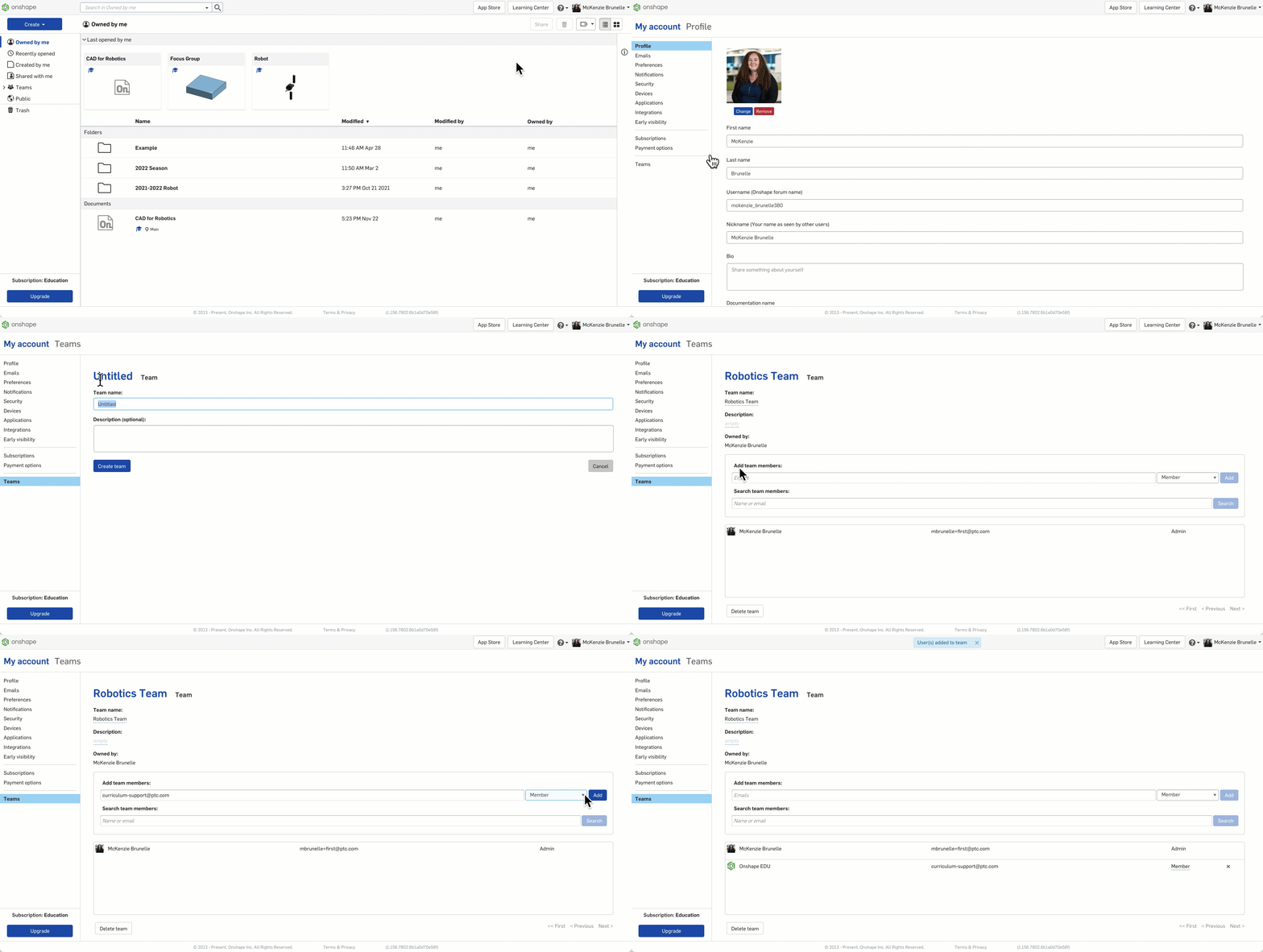
Onshape lets you create teams to manage permissions centrally. Go to My Account → Teams and enter your teammates' emails to invite them. When sharing documents later, you can share with the entire team instead of adding people one by one.
Folder Management
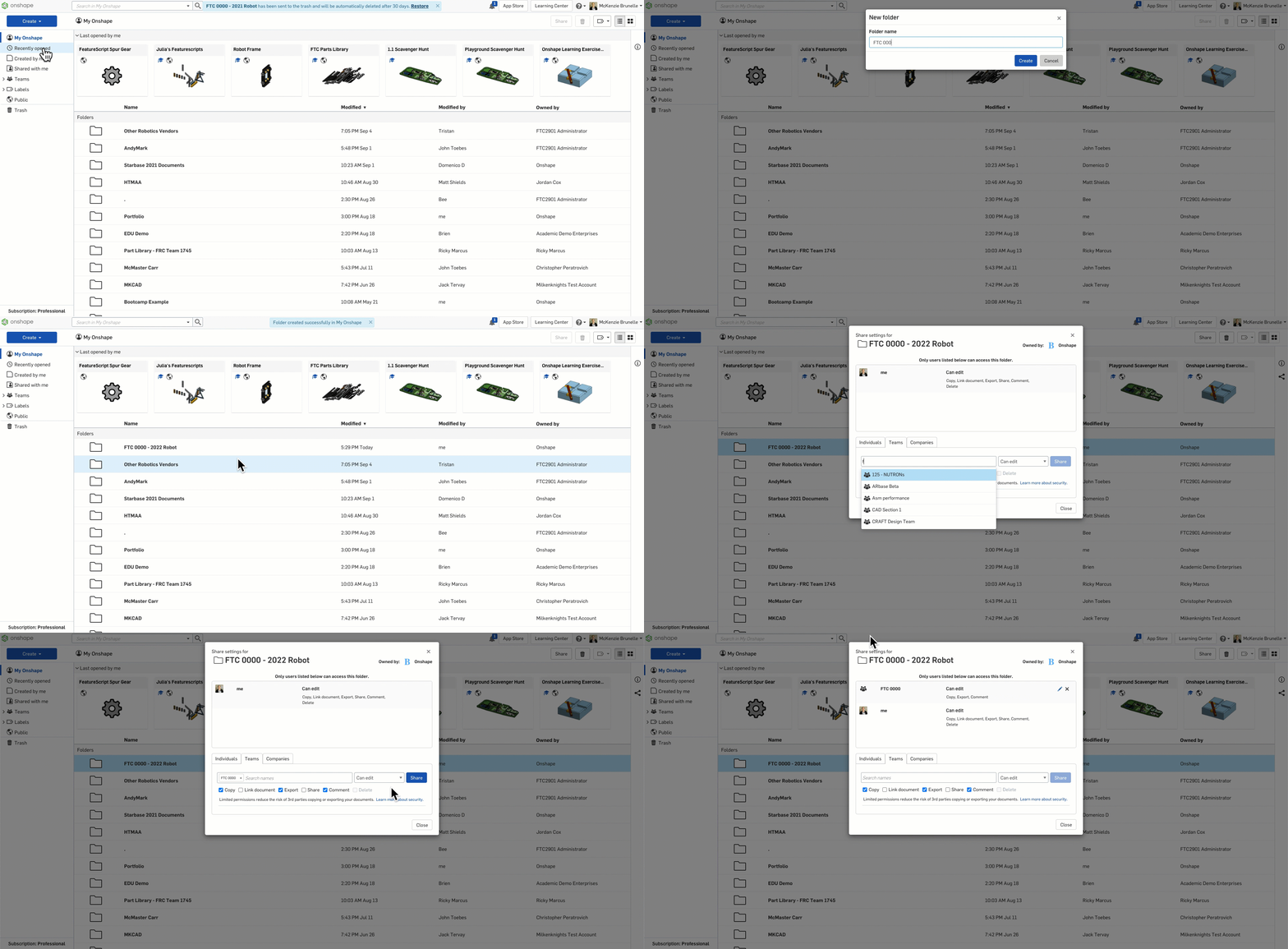
As your project documents grow, organizing them into folders becomes important. A recommended approach is to organize by subsystem:
- Drivetrain -- Drivetrain-related documents
- Intake -- Intake system
- Shooter -- Shooter/launcher system
Organizing Within a Document
Within the same document, use Tabs to organize different parts and assemblies. Give each tab a clear name (e.g., "Drivetrain Assembly", "Wheel Part Studio") so teammates can find what they need easily.
Ownership and Sharing
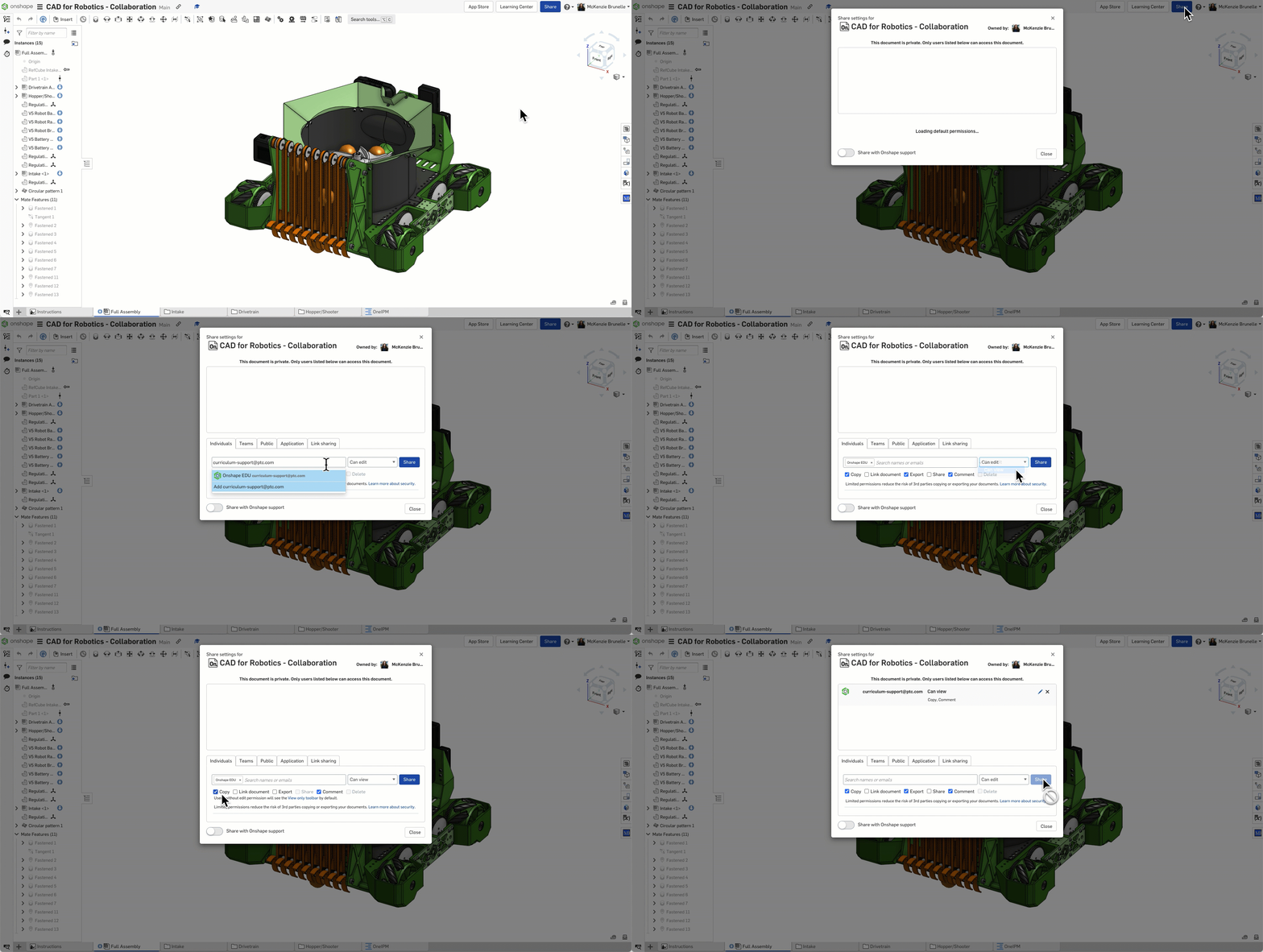
The document owner controls who can edit and who can only view. Set permissions carefully to prevent teammates from accidentally modifying critical designs.
Confirm you've created a team in Onshape, invited teammates, and established a folder structure organized by subsystem.
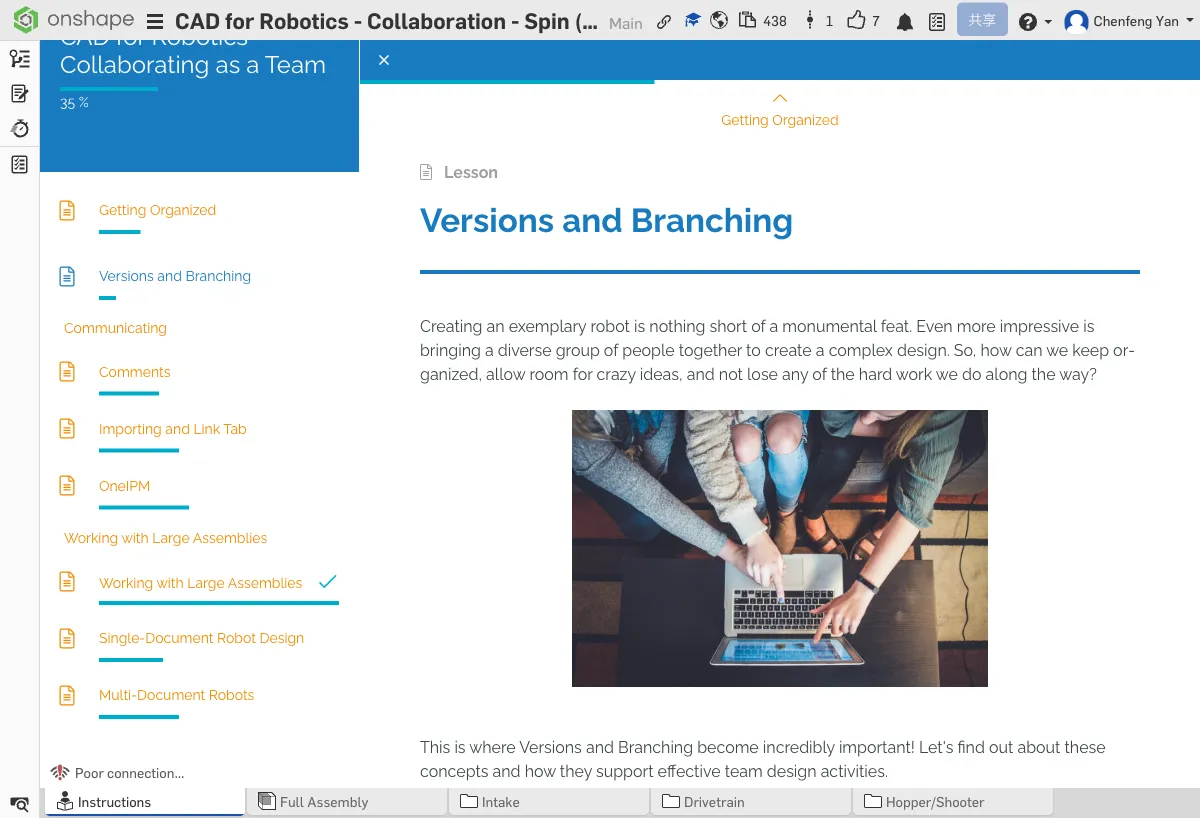
B. Versions and Branching
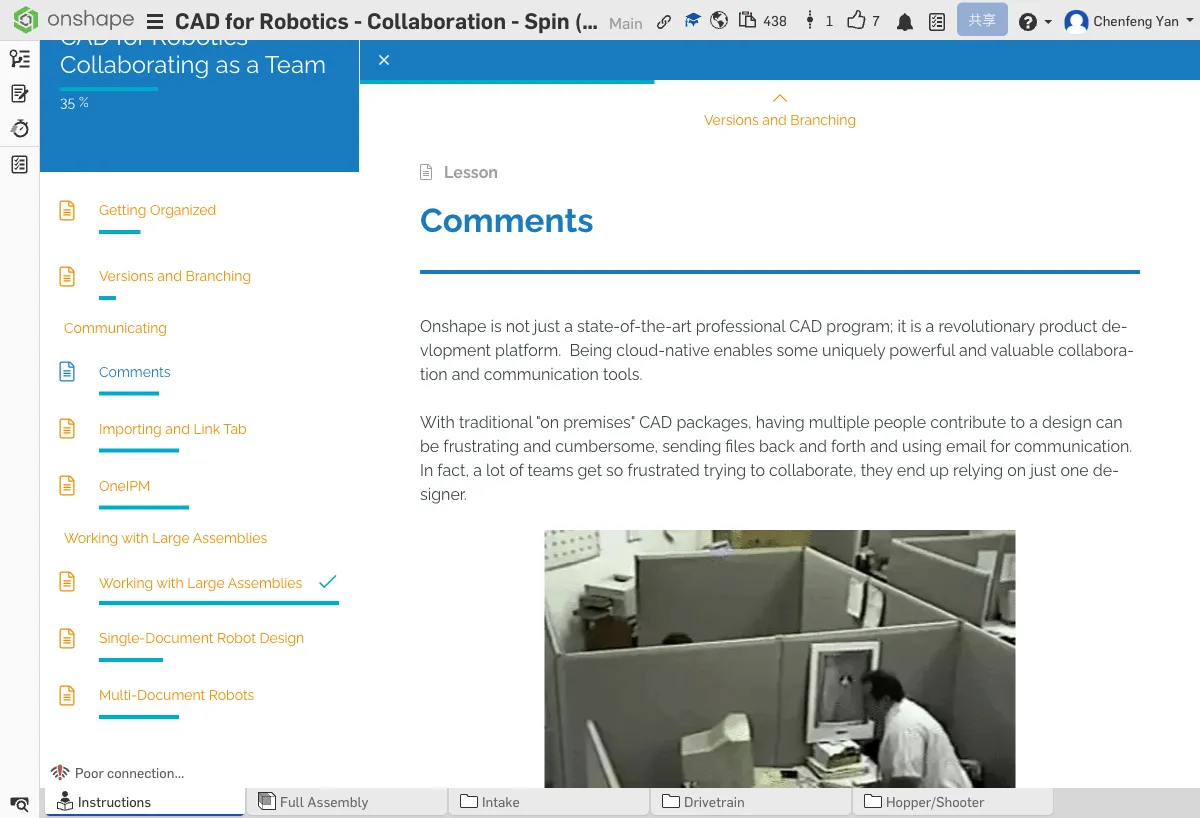
What is a Version?
A Version is like a game save -- it takes a snapshot of your design's current state that you can revisit anytime. Versions are read-only and can't be modified.
How to Create a Version
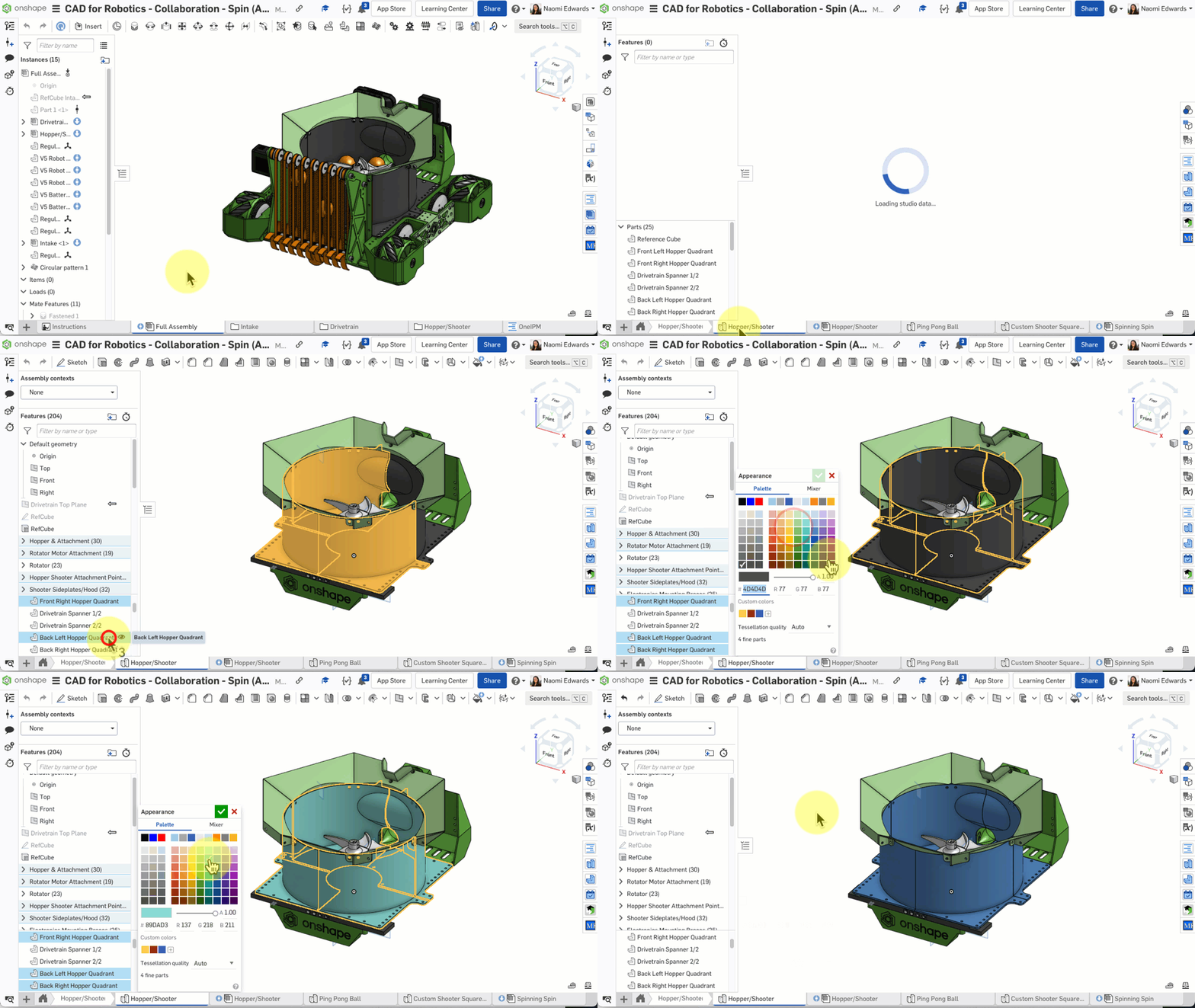
- Make some changes to the design (e.g., change a part's color)
- Click the document menu in the top left → Create version
- Give the version a name (e.g., "Pre-competition version")
- View all versions in the History graph
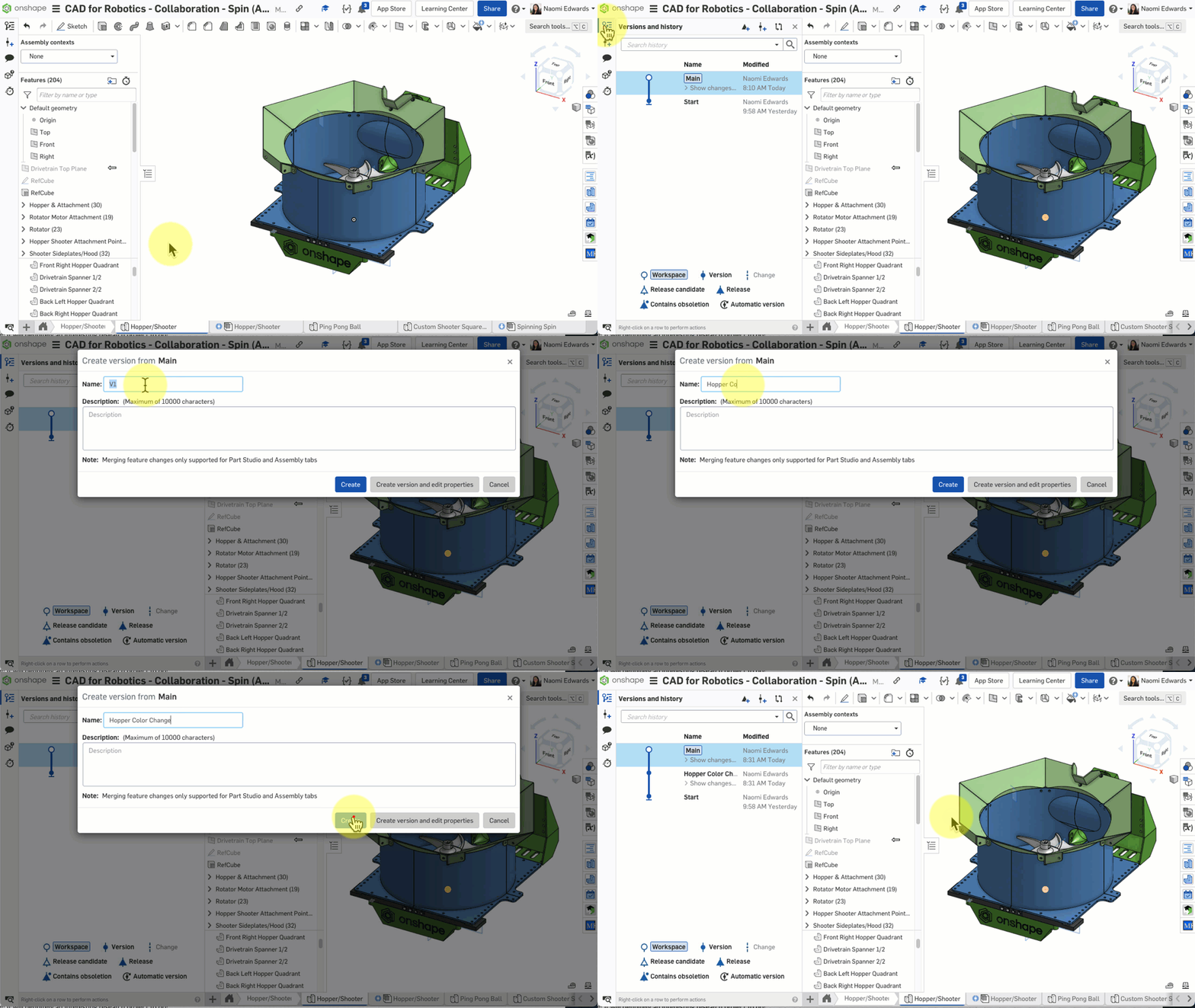
When to Create a Version
- Before a competition -- Lock in the current design
- Before major changes -- In case things go wrong, you can revert
- Before a design review -- Give coaches or judges a stable version to review
What is a Branch?
A Branch is an independent workspace created from a version. You can experiment with new ideas in a branch without affecting the main design. If you're happy with the results, merge it back into the main workspace.
Creating and Using Branches
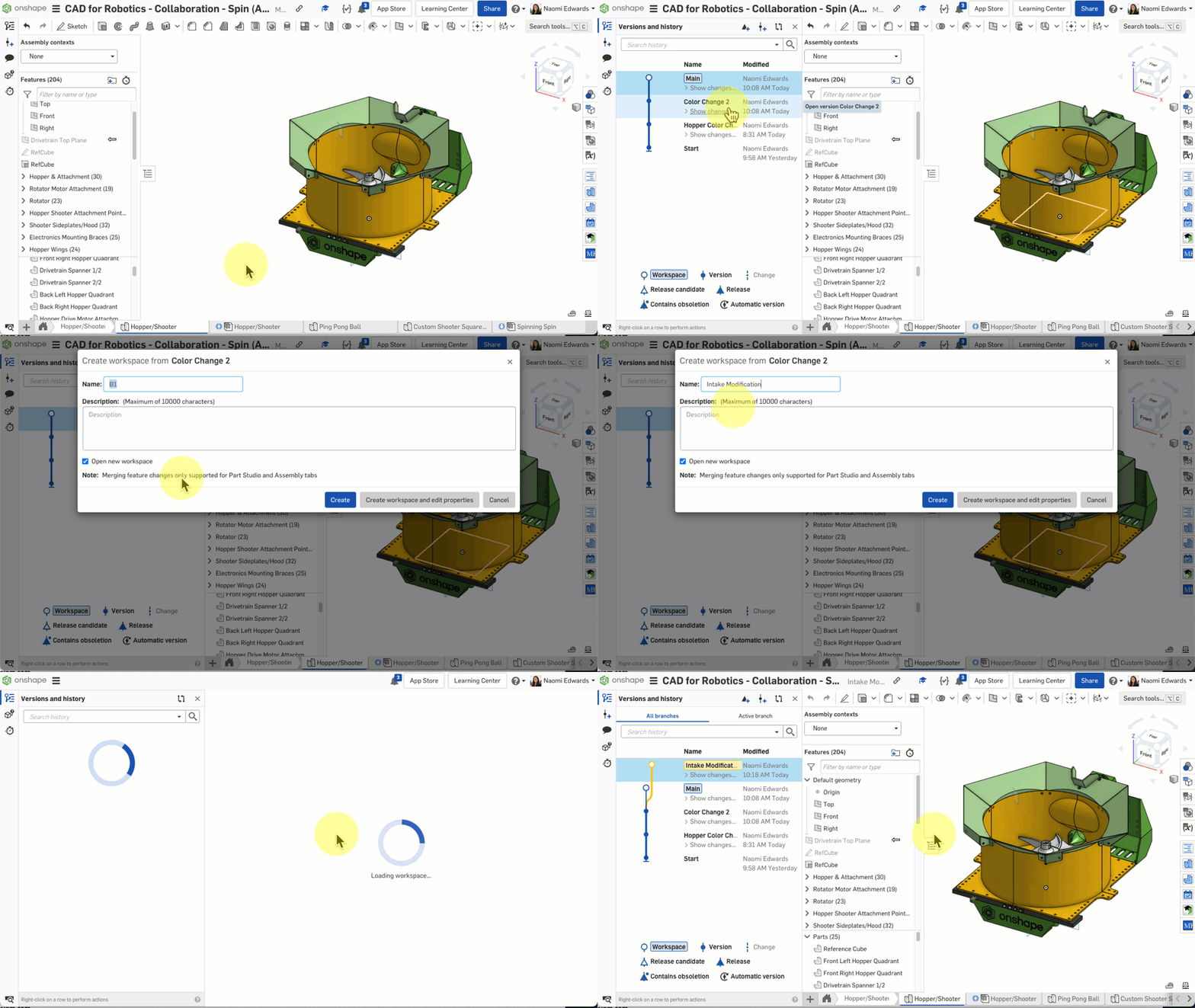
- Create a branch from a version
- Make changes independently in the branch
- If satisfied, merge back to main; if not, simply abandon the branch
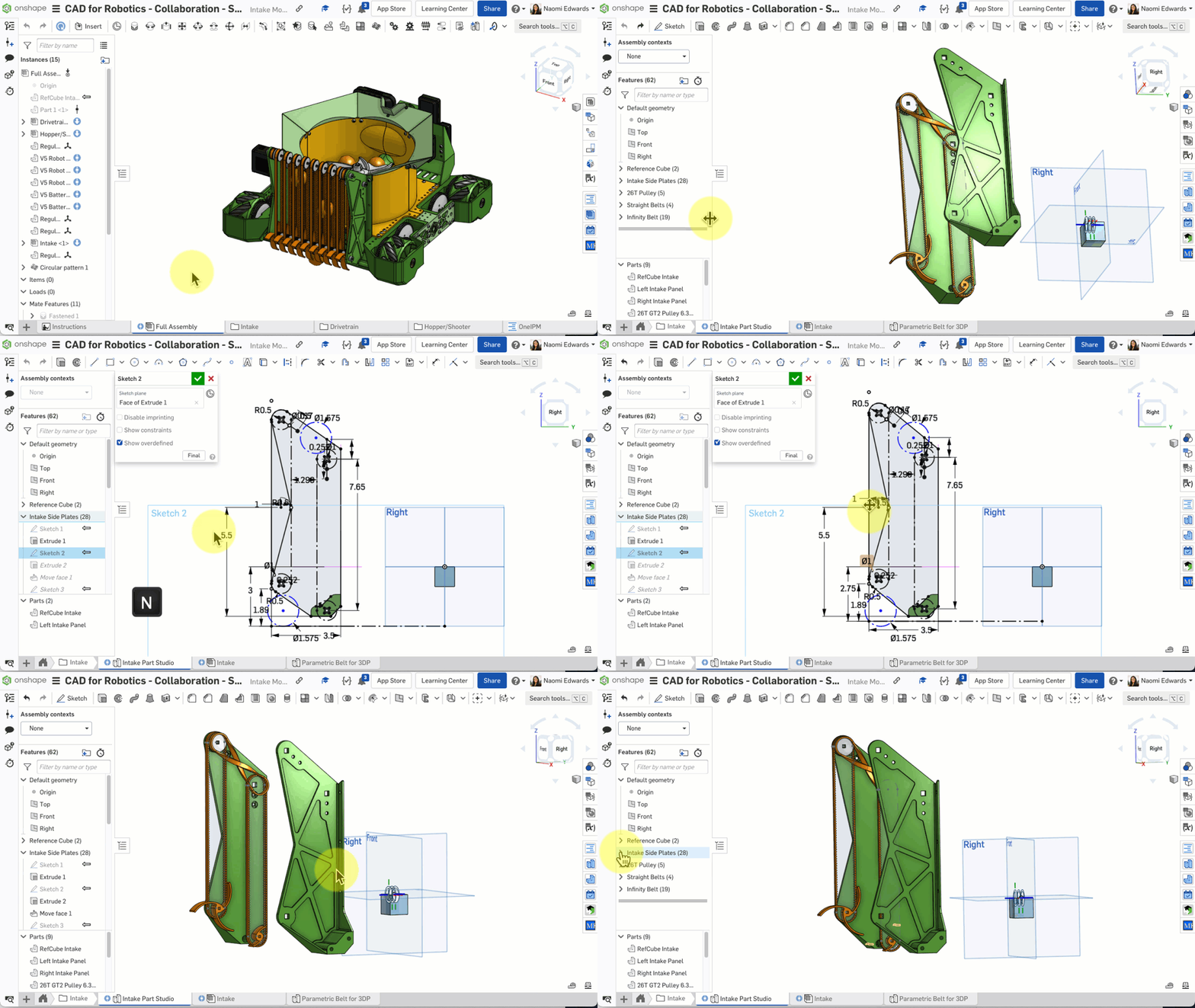
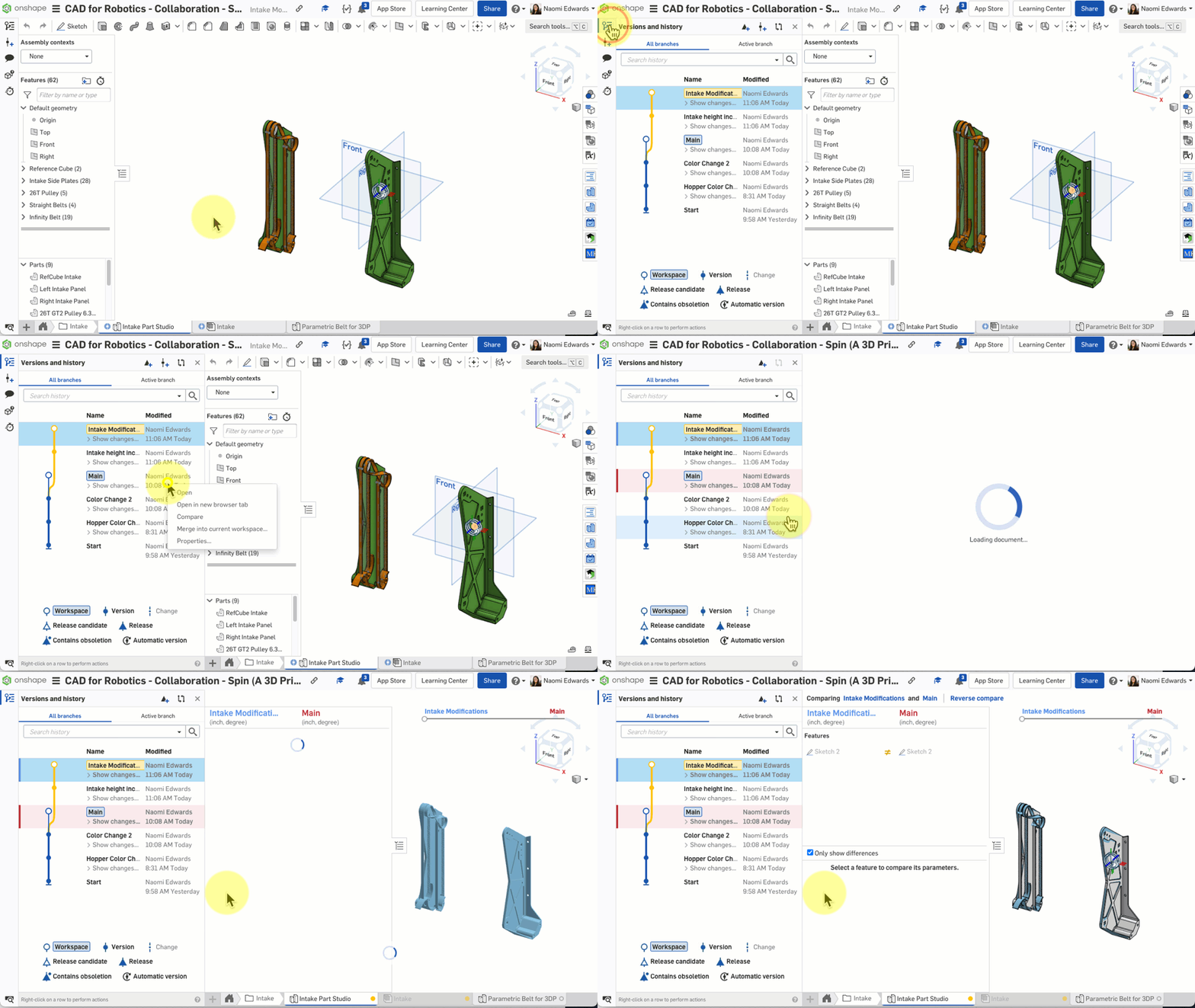
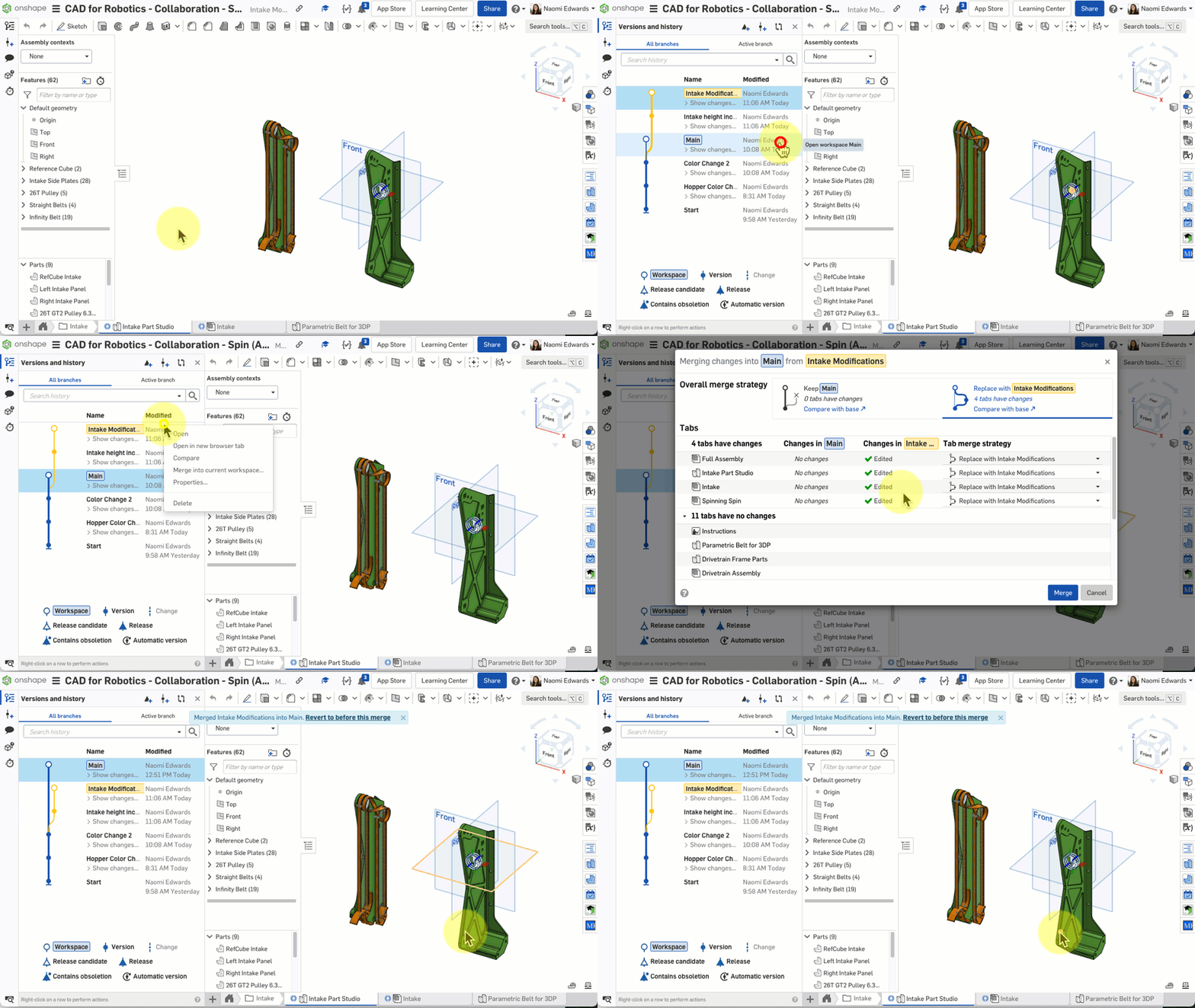
Confirm you can see the version you just created in the history graph, and that you successfully created a branch from that version.
⚠️ Common Issues
- Can't find version history? — Click the document menu in the top left → History to see the timeline of all versions and changes.
C. Comments and Communication
Comments
Onshape supports leaving comments directly on models. You can:
- Click on a specific location on the model to leave a comment
- Use @ to mention teammates -- they'll receive a notification
- Add annotations to point out specific areas that need changes
Tasks and Notifications
Mark comments as Tasks and teammates will receive notifications. Mark them as resolved when done.
Filtering Comments
When comments pile up, filter them by type: tasks, resolved, or unresolved.
Importing External Files
Need parts designed in other software? Onshape supports importing multiple formats:
- STEP -- The most universal 3D format
- IGES -- Older but widely compatible
- STL -- Commonly used for 3D printing
Link Tab
Embed external links in your document -- such as game manuals, design documents, or team journals. Keep all related materials in one place.
Leave a comment on the model and try @mentioning a teammate. Comments are an important way for teams to communicate.
Quick Quiz
What Onshape feature saves a snapshot of your design at a point in time?
What You Learned in This Chapter
- Create Teams to manage permissions centrally
- Versions snapshot your design; Branches let you experiment with new ideas
- Comments and @mentions enable team communication